Please see the following scheduled Microsoft change:
Date: Between mid-August and mid-October 2025 (An exact implementation date for WSU’s Microsoft environment is unavailable.)
The following work is being completed: Microsoft is adding new sign-in options for Teams on the web to support access using Apple and Google accounts. Expected sign-in process changes are detailed below.
All affected groups: This change may be visible to WSU users accessing Microsoft Teams via a web browser.
All affected processes:
- Users can sign in to or sign up for a Microsoft account using their Apple or Google credentials via Teams on the web.
- Options to Continue with Apple or Continue with Google will appear on the sign-in page at teams.microsoft.com or teams.com.
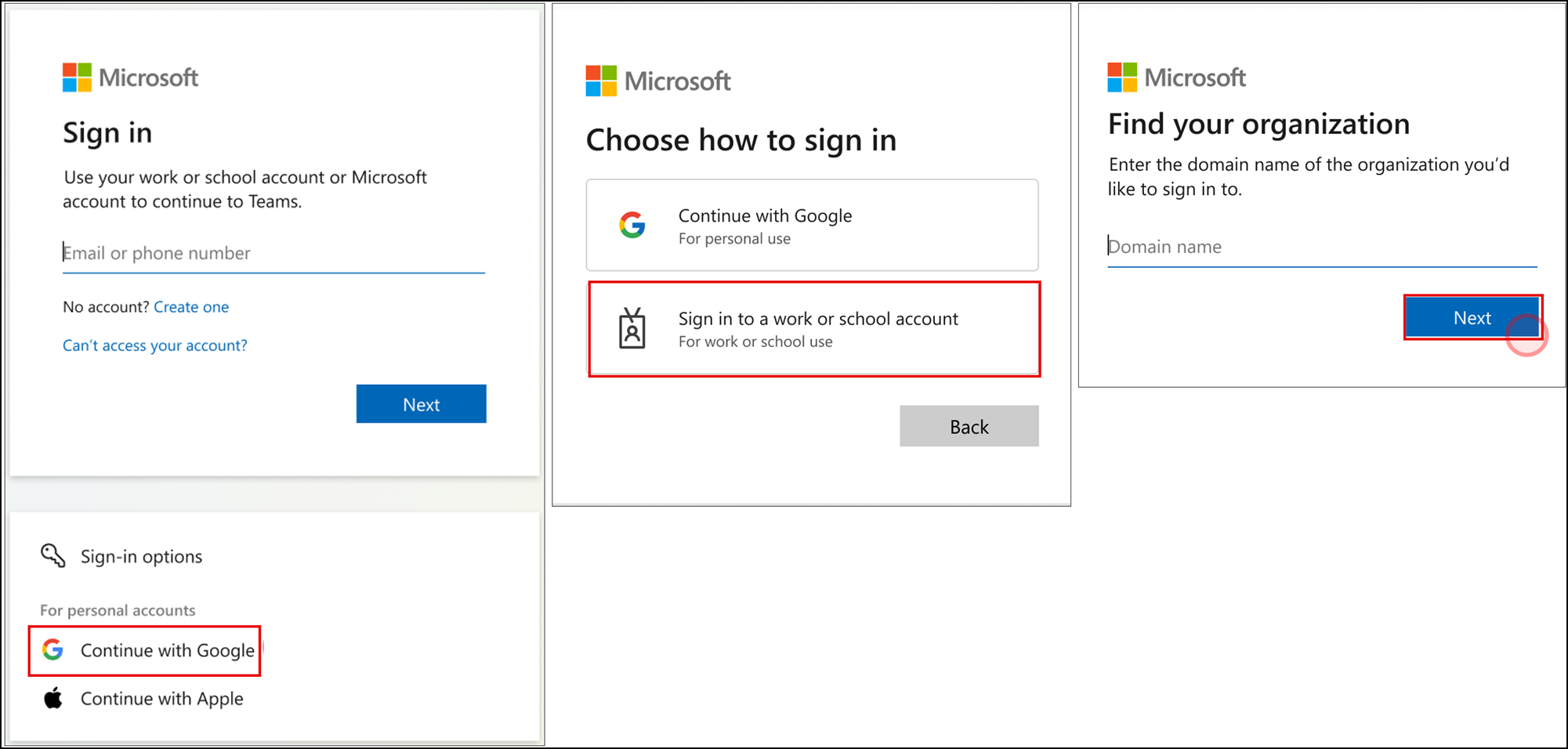
- Users may be prompted to confirm whether they are using a personal or work/school account during the sign-in process.
- This change does not impact the current sign-in process for accessing Teams on the web using a WSU email address.
Duration of impact: This is a permanent, Microsoft-driven change.
Necessary follow-up steps: None
Questions? Please contact Crimson Service Desk at crimsonservicedesk@wsu.edu or 509-335-4357.
Upcoming Changes
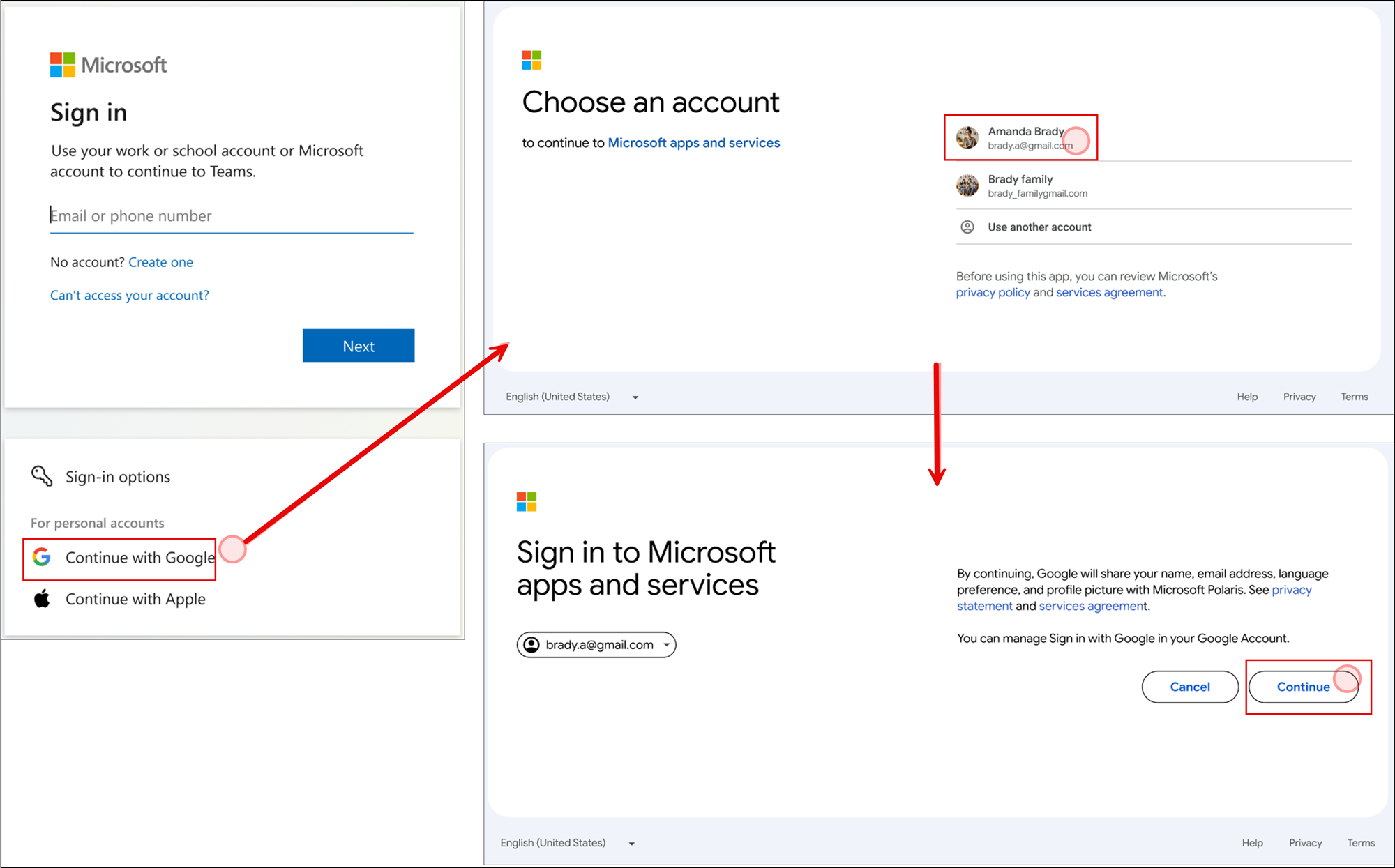
Teams users can select Continue with Apple or Continue with Google to sign in to or sign up for a Microsoft account using Apple or Google credentials. In the following image, you will note the new sign-in options and the process that will appear for accessing a Google account:
A subset of Teams users who select one of the new options may be prompted to confirm whether they are using a personal or work/school account. In the following image, the work/school option was selected:
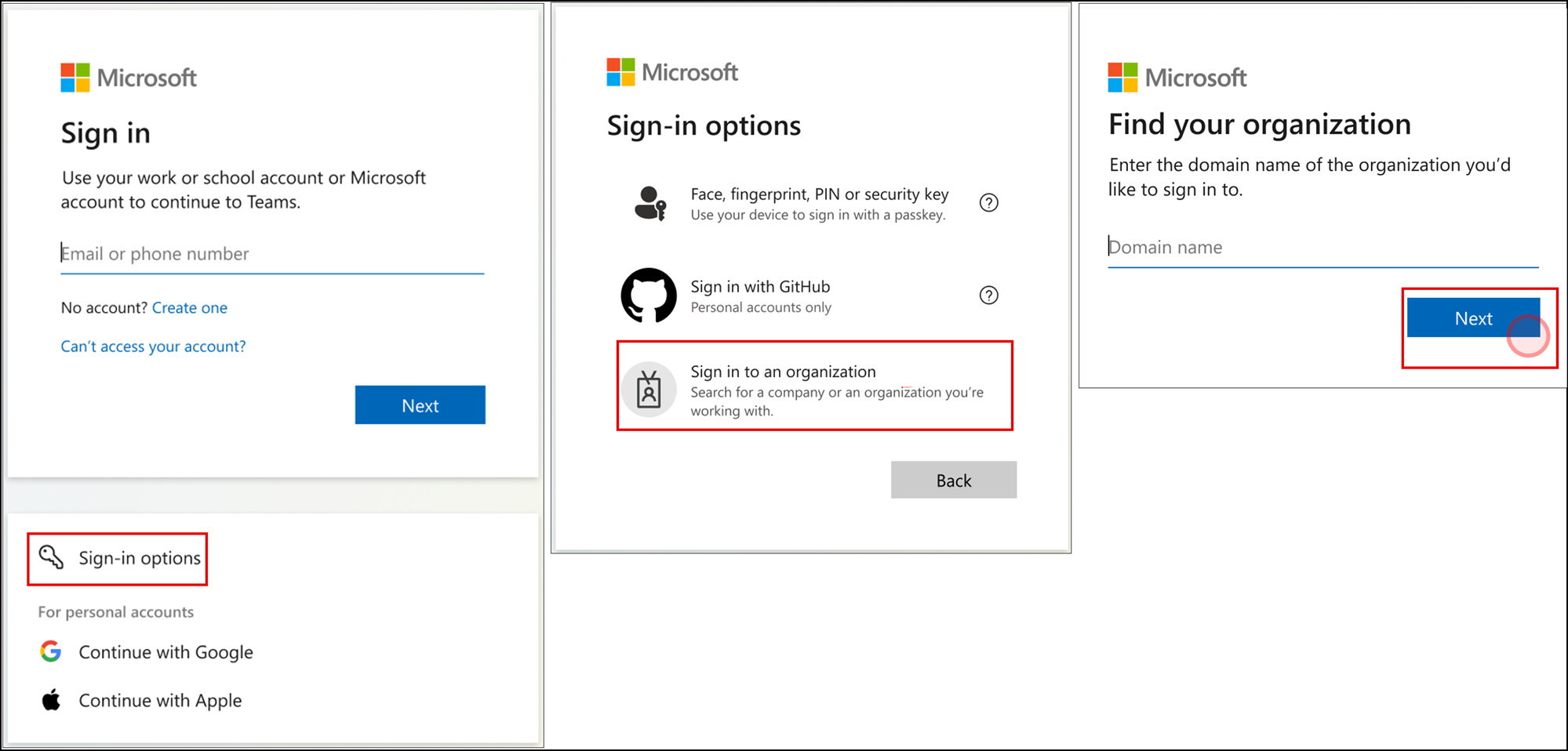
Teams users can continue entering their email at the top of the sign-in screen, and sign into a specific organization via the current Sign-in Options button: