Your WSU Zoom Phone activation is complete. This guide outlines what to expect following your migration.
Before You Get Started
Your phone service now lives in Zoom Workplace:
- Your primary phone experience has moved to the Zoom Workplace application. Services tied to Cisco, including Jabber or old physical phones, no longer work after your number is transitioned to Zoom Phone.
- Unless you have been provided a physical phone, you will use the same headset, headphones, microphone, and other audio devices that you currently use for Zoom meetings to make and receive Zoom Phone calls.
Your phone number and extension stay the same:
- You will continue using your existing 10-digit WSU phone number and your existing 5-digit extension. Colleagues and external callers can still reach you using your current contact number.
Watch for External Emails
You may receive one or more automated Zoom emails in the days following your migration. These emails may reference your phone number, extension, or PIN code.
No action is required if you receive all or some of these emails. In some cases, information in the emails may differ from what appears in Zoom Workplace. If you can make and receive calls successfully, you can disregard these messages.
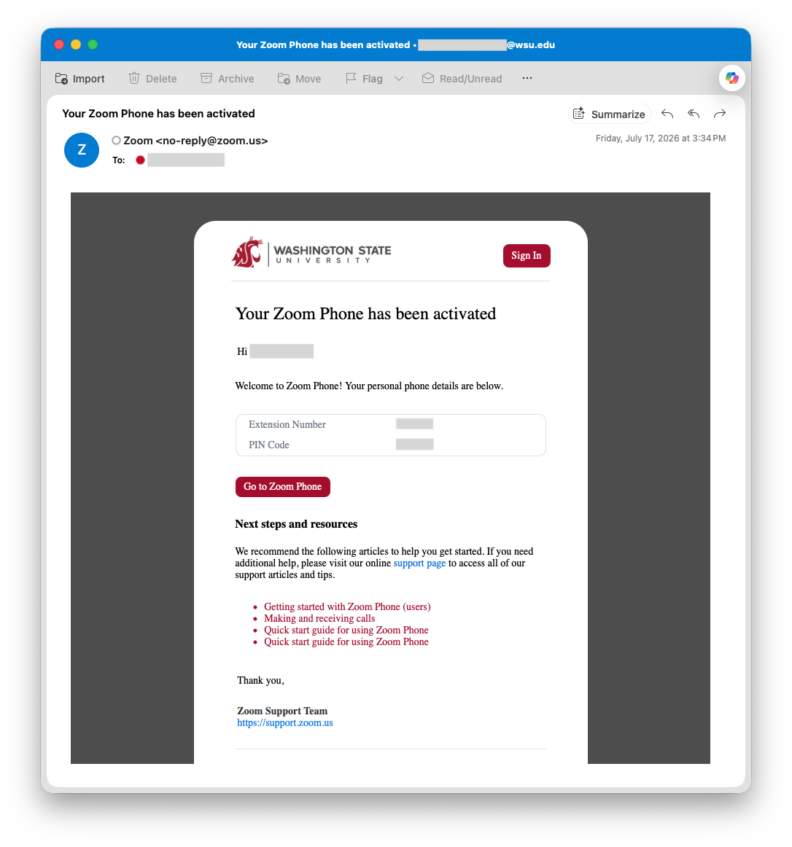
This email welcomes you to Zoom Phone, provides your extension number and PIN code, and shares general Zoom Phone support articles.
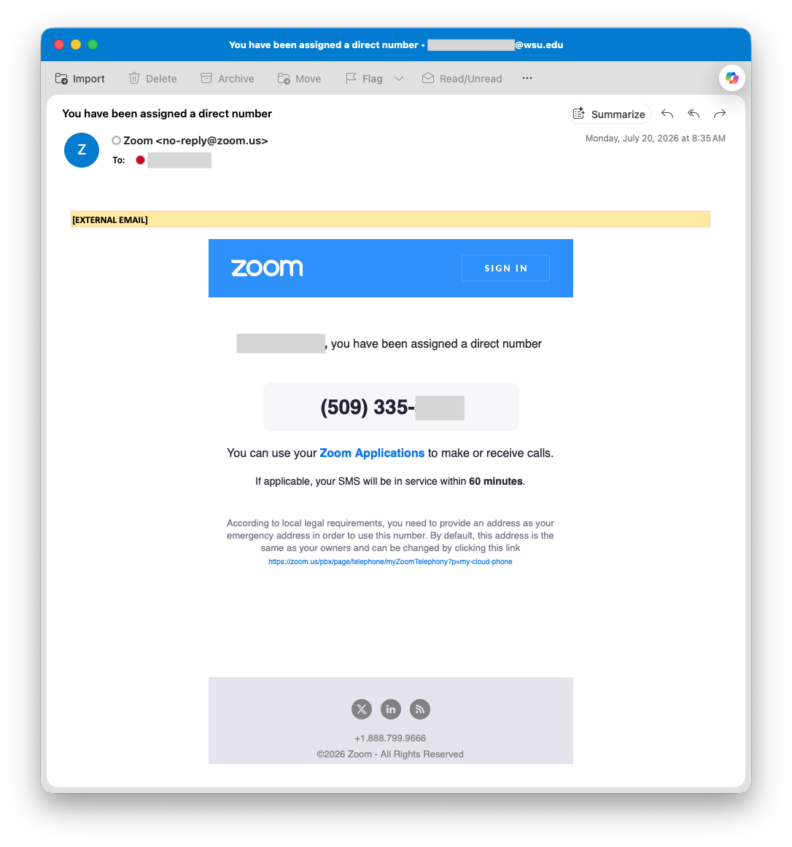
This email confirms your 10-digit phone number.
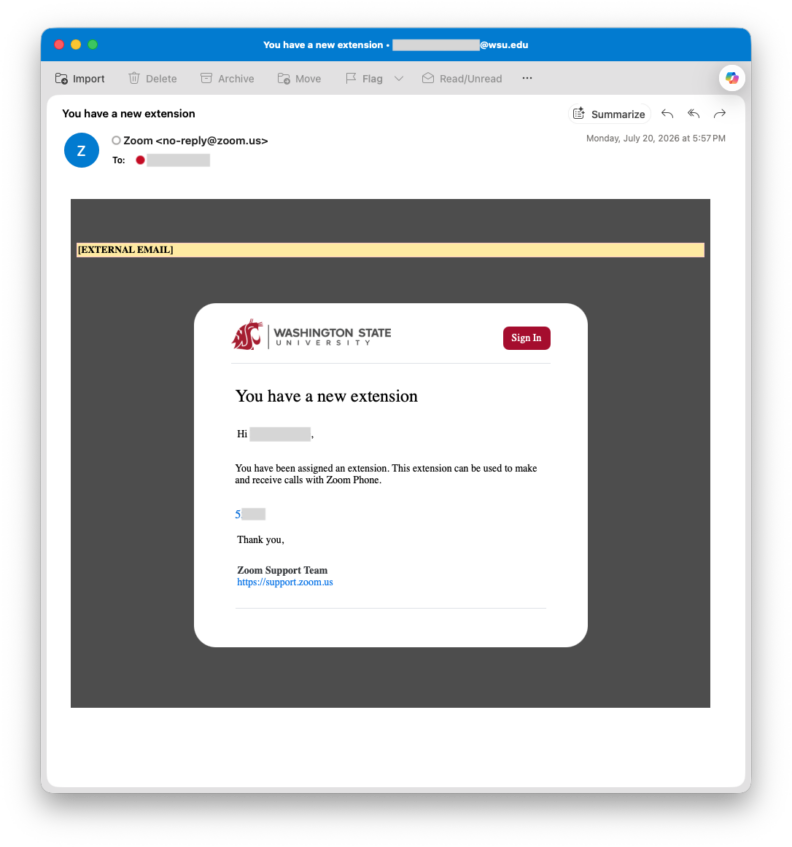
This email confirms your 5-digit extension.
Access Zoom Phone
Your phone service is accessed through the Zoom Workplace application. If you have previously used Zoom for meetings, you will now see additional phone capabilities within the same application.
Ensure Zoom Workplace is installed on the device you intend to use for your WSU phone calls: Download Zoom
1. Open the Zoom Workplace application on your computer.
2. Sign in using your WSU account.
3. From the Home tab, locate the the Phone tab.
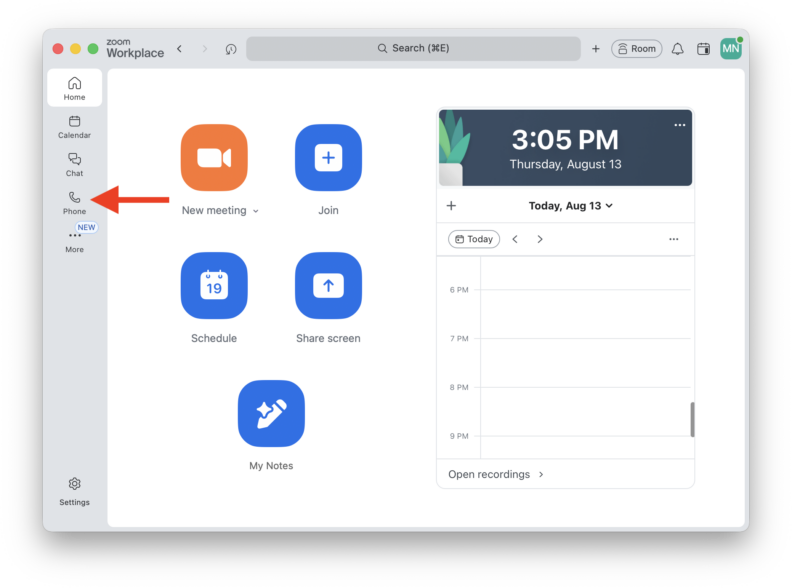
4. Begin utilizing Zoom Phone features.
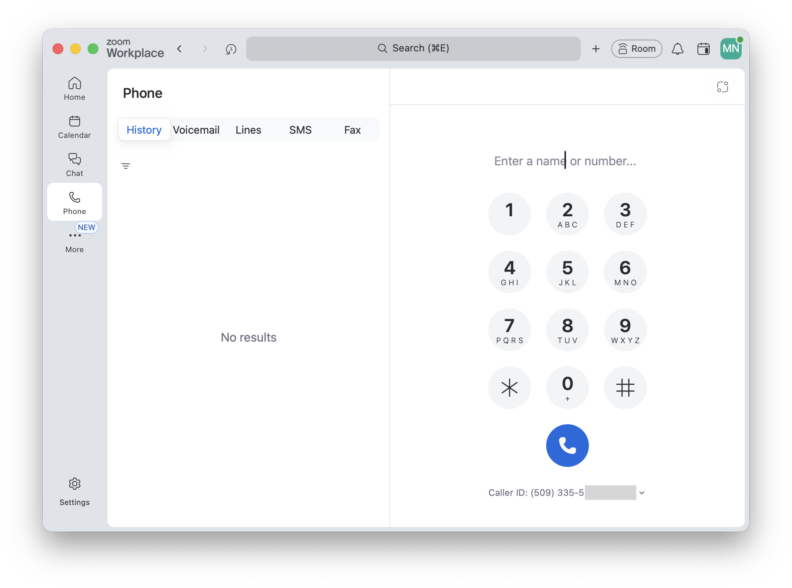
Please Note: Calls made through the Zoom mobile app use your WSU phone number, not your personal mobile number.
1. Open the Zoom Workplace application on your phone.
2. Sign in using your WSU account.
3. From the Home tab, locate the Phone tab.
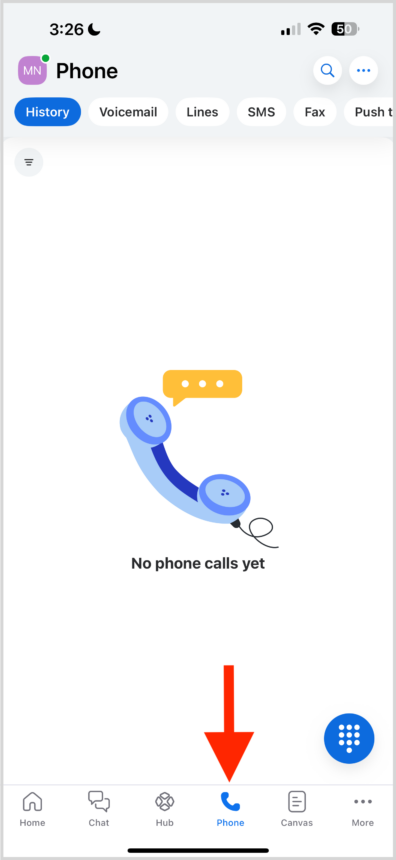
If the Phone tab is missing in your Zoom app:
- Sign out and back into Zoom
- Verify you are using the latest version of the application
- Contact your local IT support team if the issue continues
Set Your Emergency Location
Zoom Phone uses your emergency location information to help emergency responders identify your location if you place an emergency call. Verify that your emergency location is accurate and reflects the physical location where you primarily work.
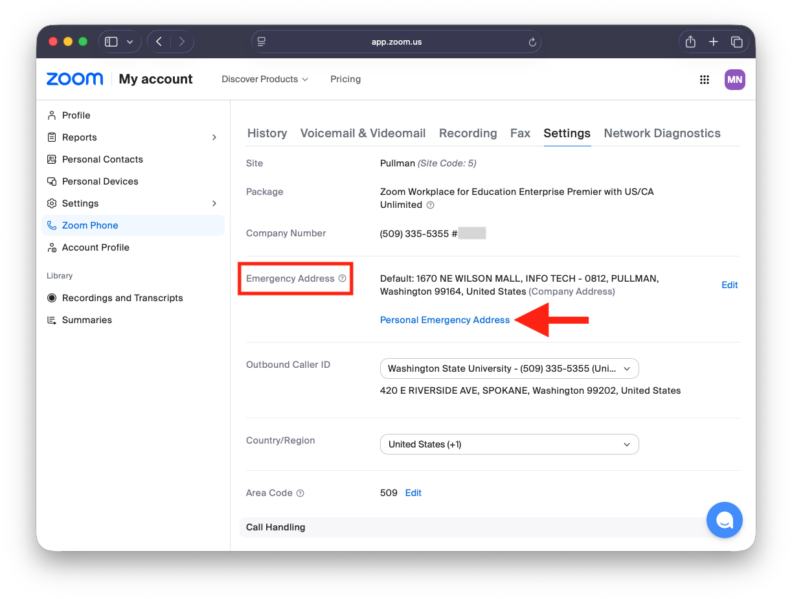
1. Navigate to your Zoom Phone settings via the WSU Zoom web portal.
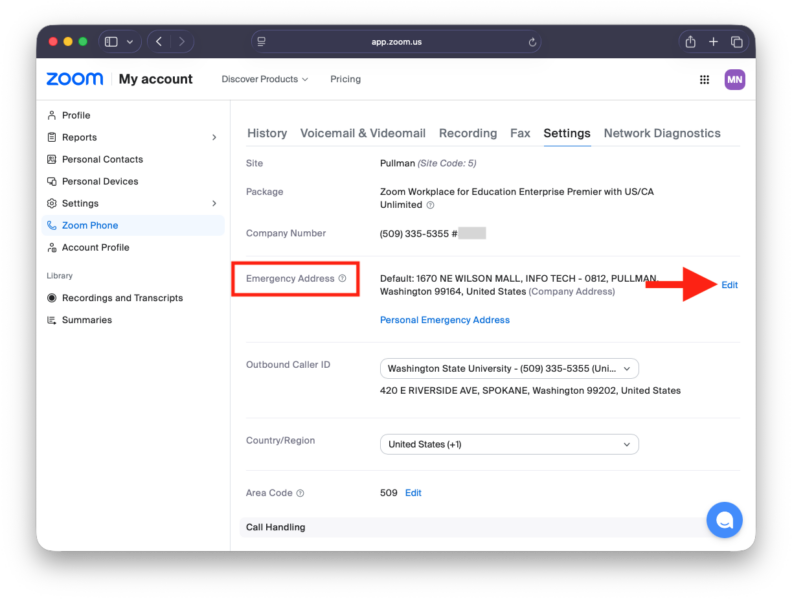
2. Locate the Emergency Address section. This will list your default WSU location and can be corrected as needed.
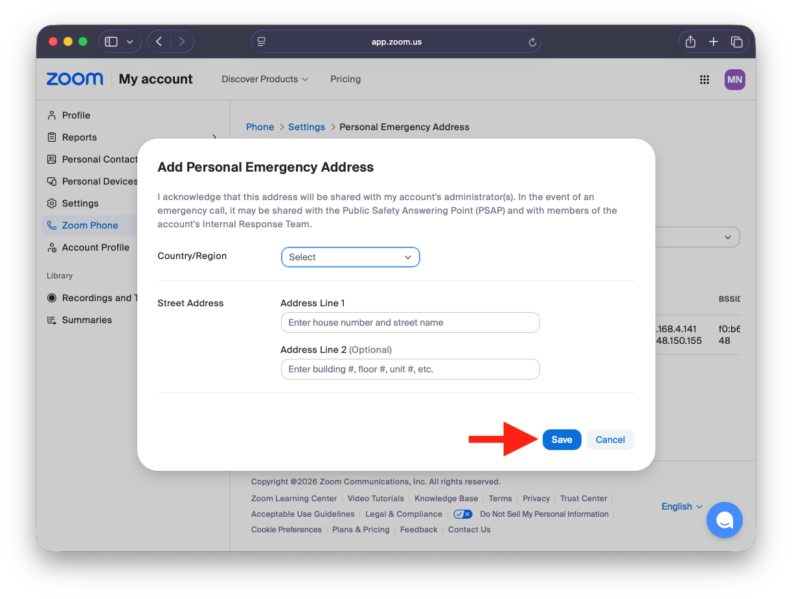
3. If you primarily work remote, To add a different address, select the Personal Emergency Address button.
4. Select the Add button.
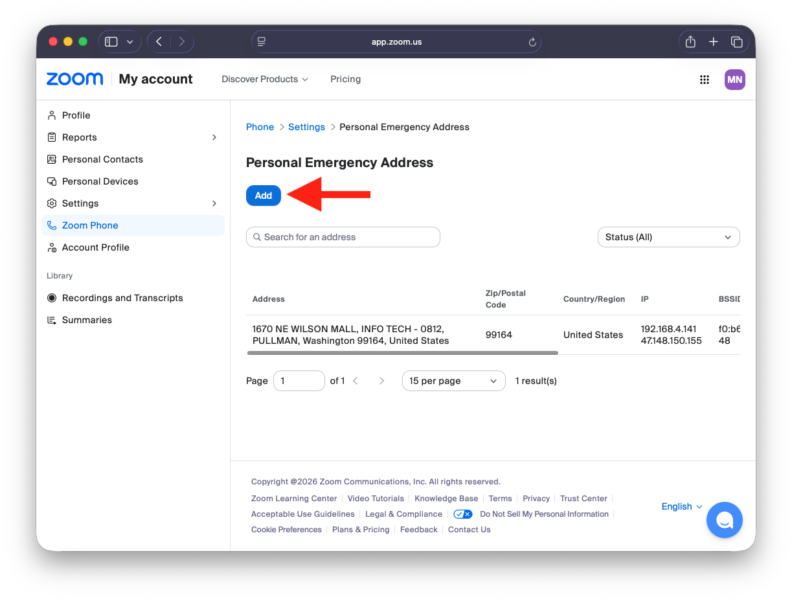
5. Enter your emergency address location and select the Save button.
6. Return to your Zoom Phone settings.
7. Locate the Emergency Address section and select the Edit button.
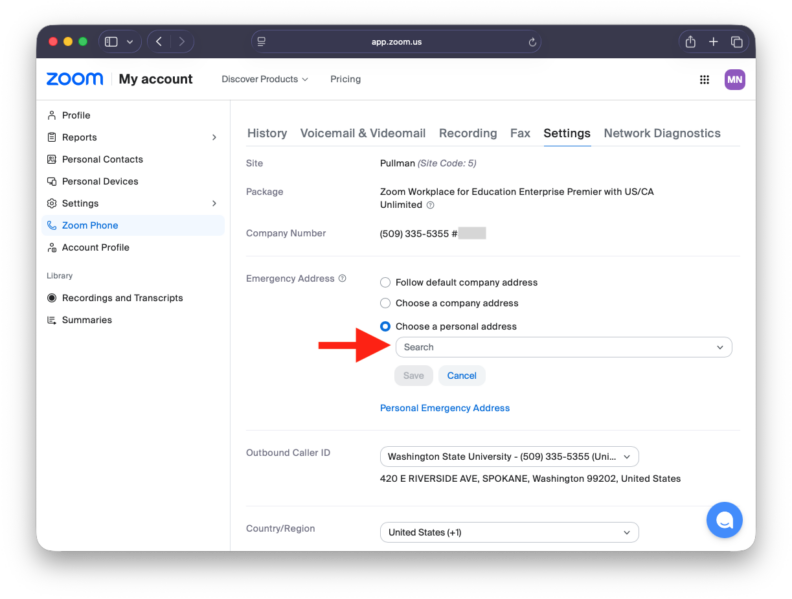
8. Select the Choose a Personal Address button.
9. Select your preferred address from the dropdown menu and select the Save button.
Review Voicemail Settings
You will start with a new, empty voicemail inbox after moving Zoom Phone. Voicemail messages from the previous Cisco phone system are not transferred to Zoom Phone.
By default, new voicemail messages are available in Zoom Workplace and are also delivered to your email with both an audio recording and a transcription.
Learn how to manage your voicemail messages on every Zoom Phone platform.
Voicemail messages can be up to five minutes long and are displayed in reverse chronological order, with the most recent messages at the top. If a number has a caller ID name or matches an internal contact, the name is displayed above the number, and unplayed messages are marked with a blue dot.
1. Navigate to your Zoom Phone settings via the WSU Zoom web portal.
2. Locate the Call Handling section.
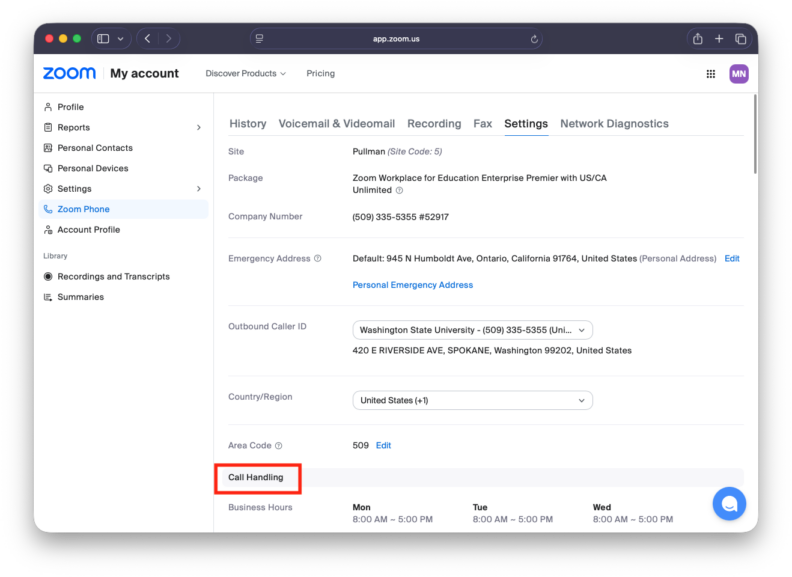
3. In the Call Handling section, locate the Greeting & Leave Voicemail Instruction option.
4. Select the Edit button.
5. Select the Add Audio option from the dropdown menu.
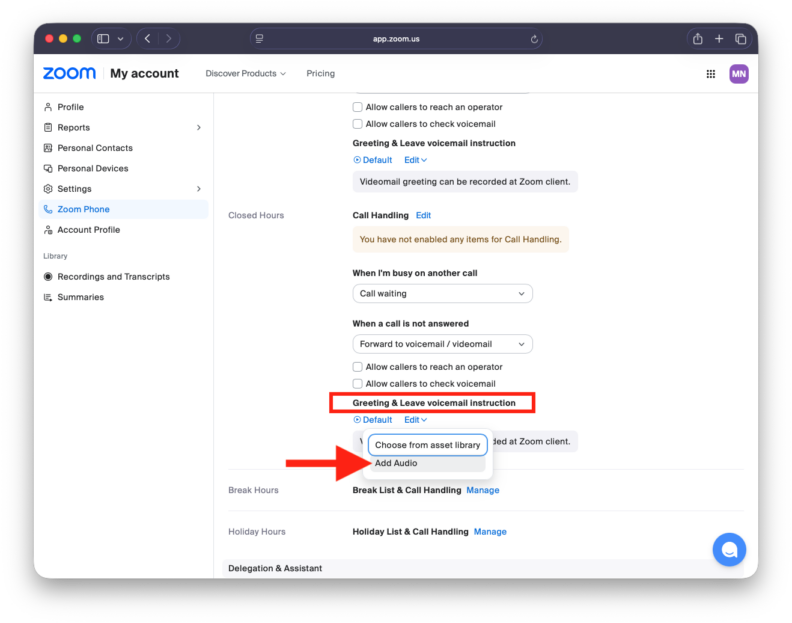
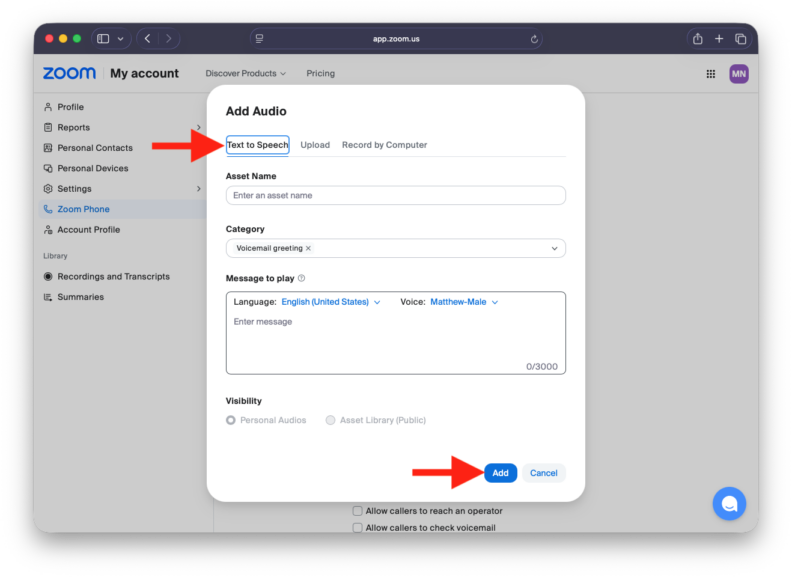
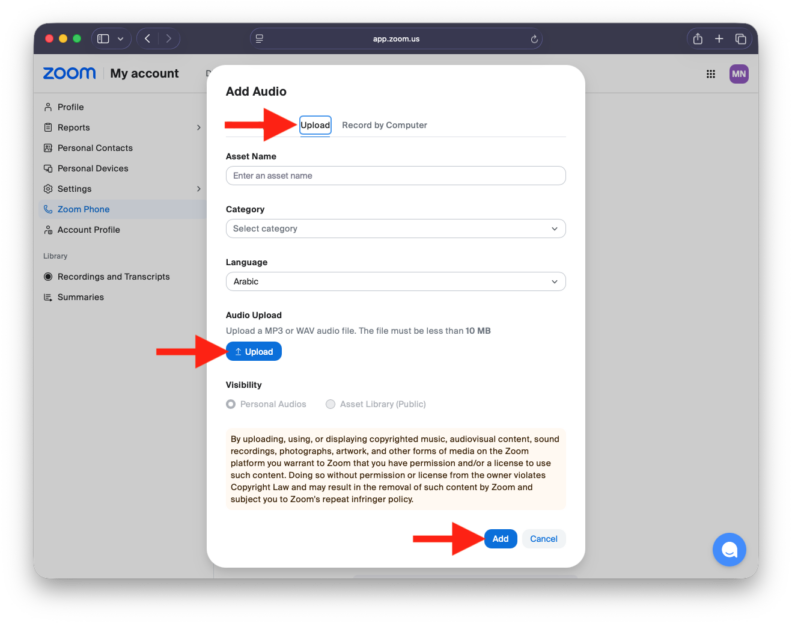
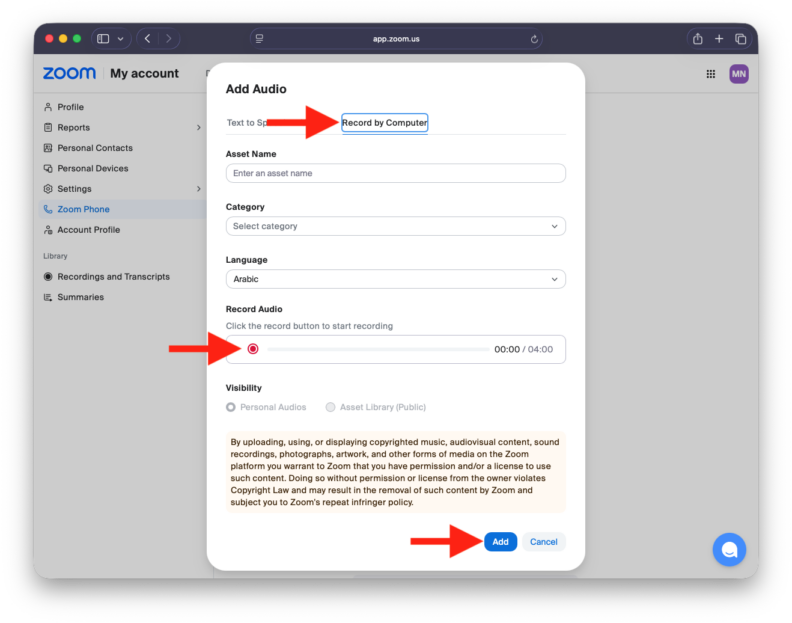
6. Select one of three options for creating a new voicemail greeting:
- Text to Speech: Enter a message that will be automatically converted into speech.
- Upload: Upload a pre-recorded audio file.
- Record by Computer: Permission for your web browser to utilize your microphone is required. Use the microphone connected to your computer to record a message.
Review Call Handling Settings
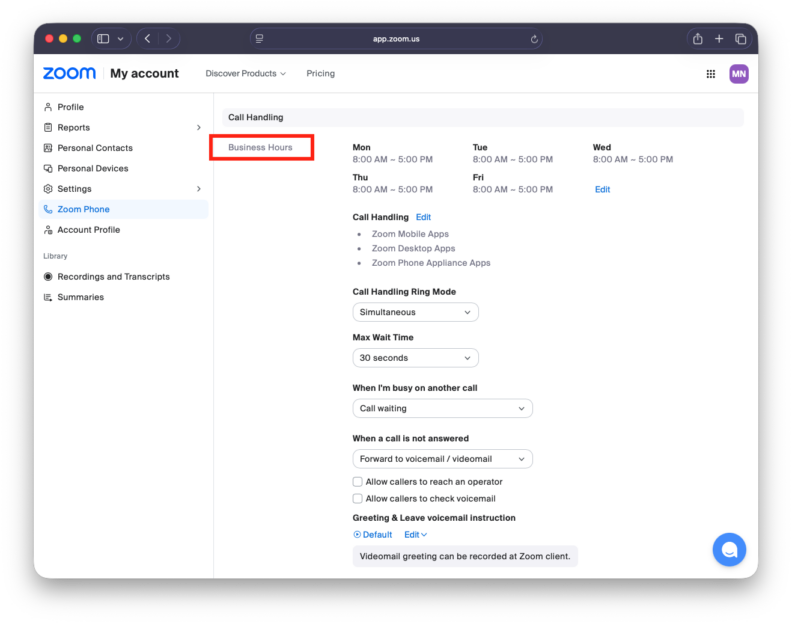
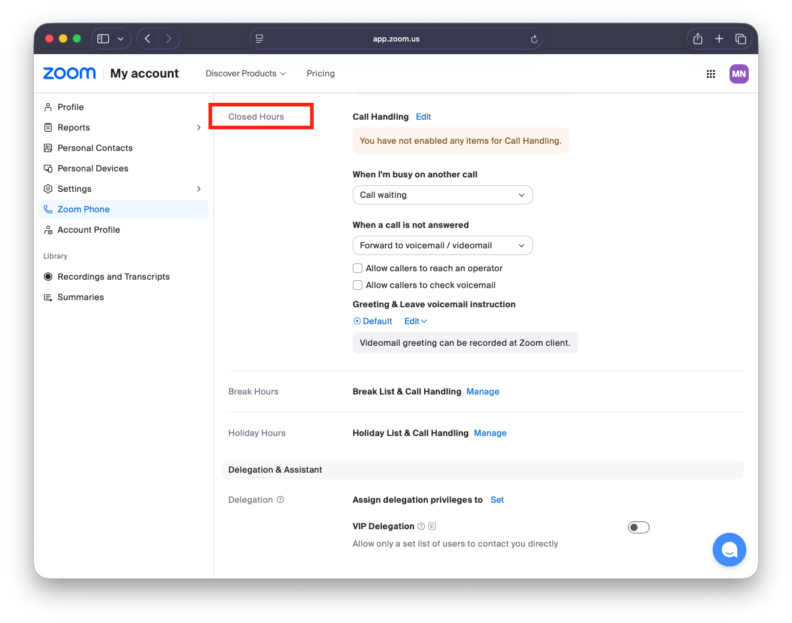
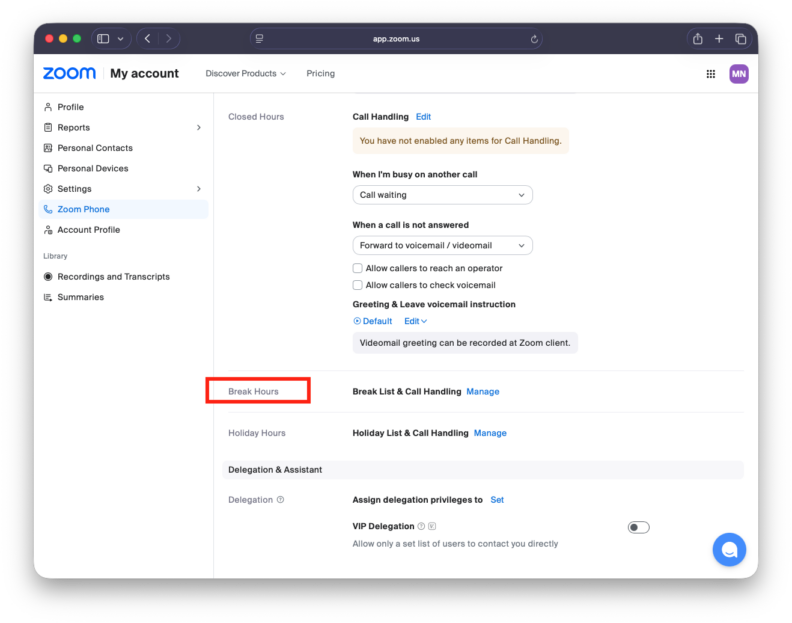
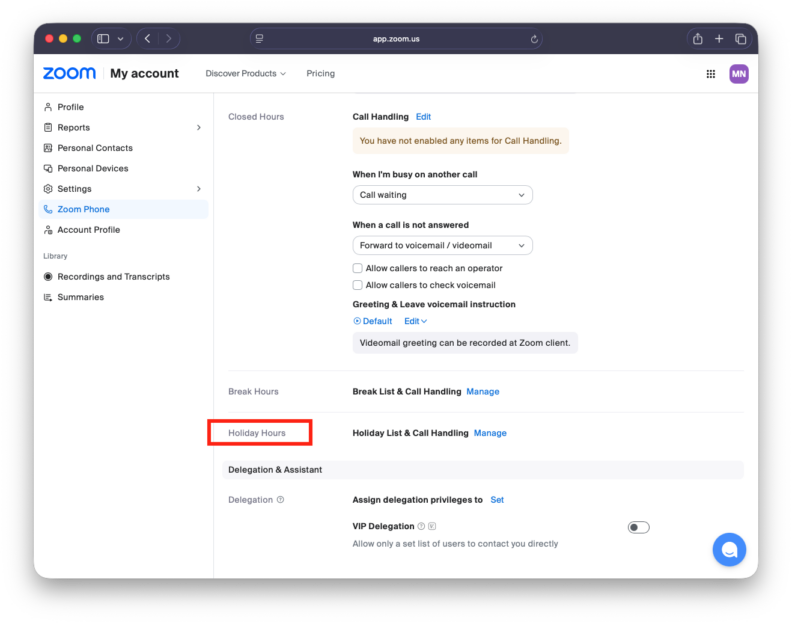
Zoom Phone allows you to control how incoming calls are routed throughout the day. Review your call handling settings to determine what happens to calls during your business, closed, break, and holiday hours.
Each routing schedule can be configured with its own voicemail greeting.
1. Navigate to your Zoom Phone settings via the WSU Zoom web portal.
2. Locate the Call Handling section.
3. Customize specific hours and how calls are handled during those certain timeframes to best fit your needs:
- Business Hours:
- Closed Hours:
- Break Hours:
- Holiday Hours:
Learn More: Call Handling for Closed Hours and Holiday Hours
Test Your Phone Service
Take a few minutes to confirm that Zoom Phone is working as expected after you migrate. Testing your service early can help identify and resolve any issues before you miss an important call.
- Call your WSU phone number from another phone (such as a personal cell phone) and confirm the call rings through.
- Answer the call using Zoom Workplace.
- Let a call go unanswered and verify that it routes to voicemail.
- Leave yourself a test voicemail and confirm that:
- The voicemail appears in Zoom Workplace.
- A voicemail notification email is received.
- A voicemail transcription is generated.
- Place a test call to a coworker using their 5-digit extension.
- Place a test call to an external phone number.
- If your role relies on advanced calling features, test those as well.