How to create a requisition for Microsoft Azure Services
The document provides detailed instructions on how to create a requisition for Microsoft Azure Services using Workday. The purpose of this document is to guide users through the essential steps to generate Purchase Orders (PO) under the systemwide contract [SPC008307].
As Workday continually updates, this stagnant document may not be up to date exactly like the screen shows. Please refer to the “Create a Requisition” knowledge base article in Confluence:
Below we outline the following:
- The “Create Requisition Task” in Workday.
- Populating the necessary fields, including Requisition Type and Ship-To location.
- Details to provide, including description, spend category, supplier, contract number, start and end dates, and estimated spending.
Prior to starting this process, you should request a quote from CDW-G.
- Lance McMillan lancem@cdw.com
- Dustin Harris dustin.harris@cdwg.com
Create Requisition Task Cheat Sheet
The following cheat sheet uses ITS as an example—please adapt for your unit’s needs.
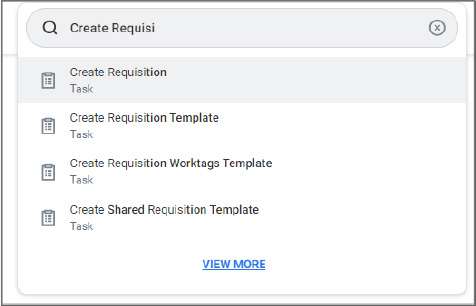
- Type in Create Requisition into the Workday search bar and select Create Requisition Task:
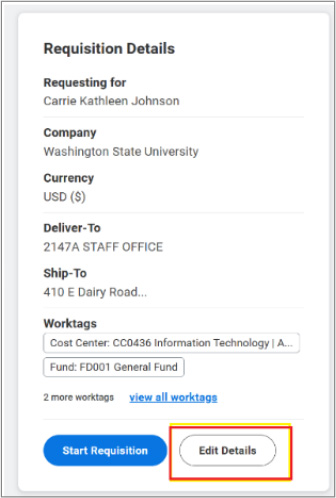
- Click Start Requisition
In the Requisition Details box, click Edit Details to update the information.
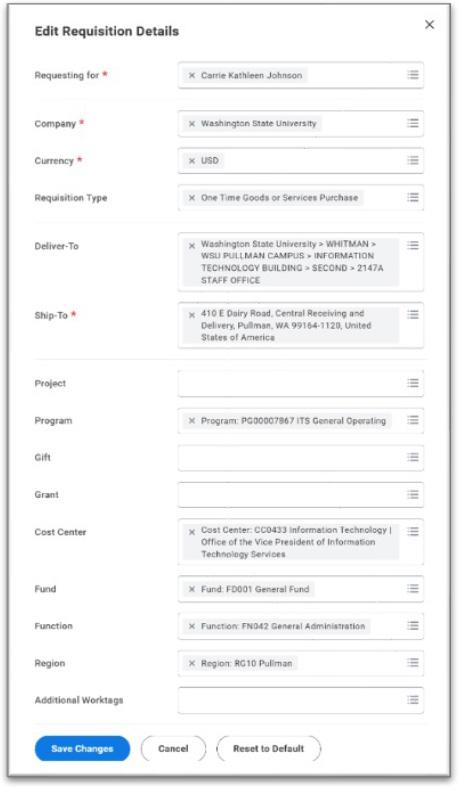
From Edit Requisition Details screen, populate the fields for your department: * = Required Field:
- Requisition Type: Select One Time Goods or Services Purchase.
- Ship-To: Please select Pullman location as the contract is administered by Pullman.
- Budget Worktags: Enter Driver Worktag: Project, Program, Gift, Grant and update other budget worktags, including Additional Worktags. *If splitting between multiple budgets, can do so on a future screen.*
- Select the Save Changes icon at the bottom of the screen.
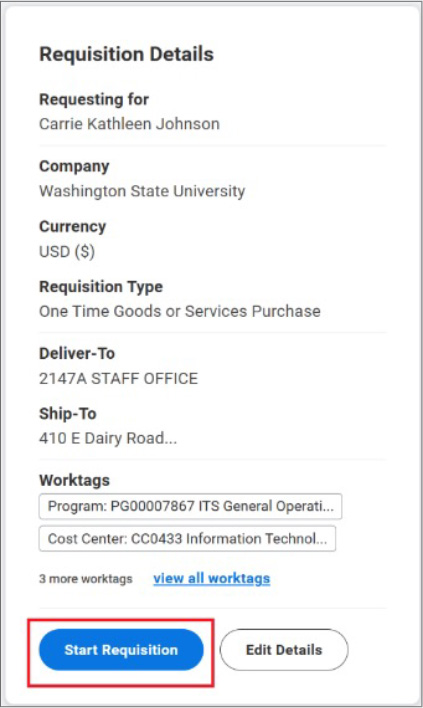
Click Start Requisition
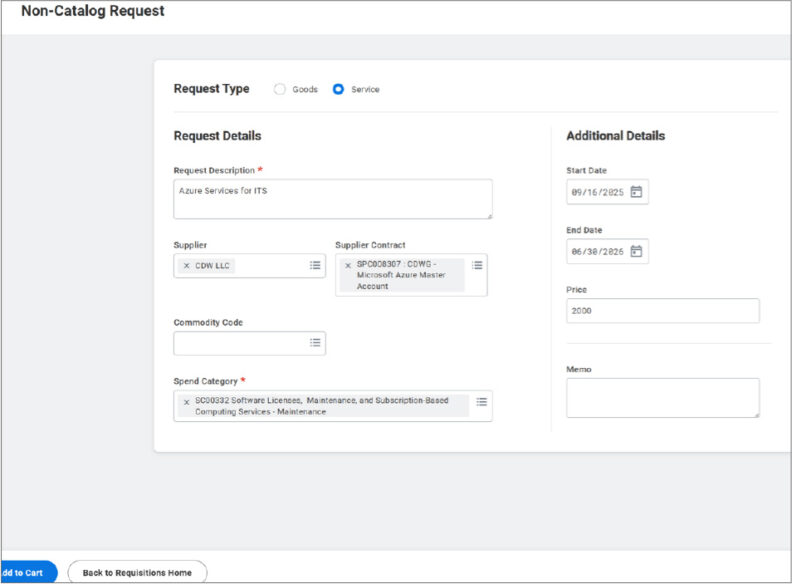
From the Non-Catalog Request, Request Type screen:
- Under the Non-Catalog Request Type heading there are two options to select: Select “Service”
- Request description: Azure Services for [Insert Your Unit Name, i.e. ITS, VCEA, CCB]; This request is for a new enrollment under WSU agreement number 01C35957.
- Supplier: CDW LLC (Supplier ID: SU0004843)
- Supplier Contract: SPC008307
- Spend Category: SC00131
- Start Date: 07/01/202X [or today if starting mid-year]
- End Date: 06/30/202X
- Extended Amount: Enter your estimated spending for the fiscal year.
- CDW team can assist with estimates.
- Select Add to Cart icon at the bottom of the screen.
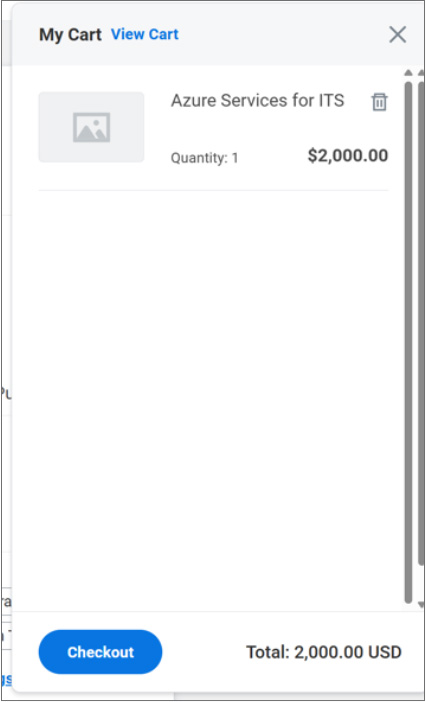
In the upper right corner of the screen, you should see a shopping cart icon with the number 1 in a circle to the right of the shopping cart.
- Click on the shopping cart icon to View Cart.
- You should find a smaller screen with My Cart at the top. If the contents of your shopping cart appear accurate, select the Checkout icon at the bottom left corner of your My Cart screen.
Under the Services heading, you should see a grid populated with fields completed earlier-all fields can be adjusted here if needed—recommended changes for all follow:
- In the Supplier column, select CDW LLC if it’s not filled in.
- In the Supplier Contract field, make sure the SPC008307 option is selected.
- In the Tax column in the Tax Applicability field, indicate Taxable – WA Sales, Use, or Retail Tax Use tax code 3812 Pullman Sales and Use Tax.

- Review and adjust budget values in the following columns to the right if needed.
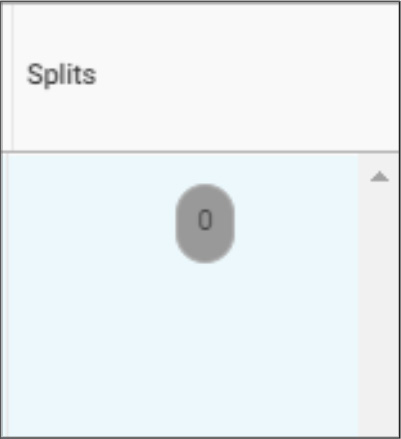
- The Splits column is the farthest to the right if splitting expenses between multiple budgets—click on the gray circle to adjust.
Memo to Suppliers field near the top of the screen. Make sure to include:
- WSU Contract Reference: SPC008307
- Contract Reference: NASPO Contract Number 14922
- Quotation Reference: CDWG XXXXXX
- Department: (Add Department Name)
- Finance Contact Information: Names and email address(es) where invoices should be sent to each month.
- Service Period: 07/01/202X-06/30/202X
- This request is for a new enrollment under WSU agreement number 01C35957.
Internal Memo field: Add any useful information for internal to WSU and departmental communications/recordkeeping.
Select the submit icon in the lower left corner of the screen.
A new Inbox task will be created “ITS Questionnaire”
Fill in the information:
- Enter Department: Your department name, department contact information, and ATO contact information.
- Enter Finance Contact: Finance contact information.
- Enter Vendor: CDW LLC (Supplier ID: SU0004843; Supplier Contract SPC008307
- Enter Description: Purchase Azure subscription under SPC008307
- Renewal: Yes, Supplier Contract SPC008307, Enterprise Level BAA is in place.
- Data Classification: Answer depends on how your unit will use this service and what types of data will be involved.
- Will this service be storing, processing, or transmitting WSU Confidential or Regulated data at a 3rd party facility: Yes and (2)
- Will a non-WSU authentication service be used: Yes
- Will WSU NIDS or email addresses be sued for ID/auth purposes: Yes
- Will this system rely on integration: No
Click SUBMIT
The Requisition will be routed to the Cost Center Manager’s Workday inbox for approval. Once approved it will go to the IT Manager. Once reviewed and approved it will go to Purchasing Services to turn the requisition into a Purchase Order.
Purchasing Services will:
- Finalize the PO for your department.
- Send the PO to CDW for processing.
CDW will:
- CDW will work with Microsoft to set up a new unique enrollment number with Microsoft.
- Send monthly usage bills directly to your department.
Should you run into any difficulties during this process, please contact purchasing@wsu.edu for Purchasing assistance or its.finance@wsu.edu for ITS assistance.