In this edition of WSU’s Zoom newsletter, Information Technology Services (ITS) is excited to share the latest updates on new Zoom features, expanded service offerings, and helpful videoconferencing resources for improving virtual collaboration, delivering unique meeting experiences, and more.
Pro Tips
WSU’s Zoom environment provides various tools — some well-known, others less familiar — that can help you create a videoconferencing experience unique to your needs. If you are looking to strengthen your meeting security, find new ways to collaborate digitally, refresh your meeting view, or maintain privacy while managing a busy desktop, review the following tips from WSU’s Zoom Services team.

Protect Your Meetings from Zoombombing
Enable security measures that restrict in-meeting functionalities, control participant entry, and keep private meetings private.
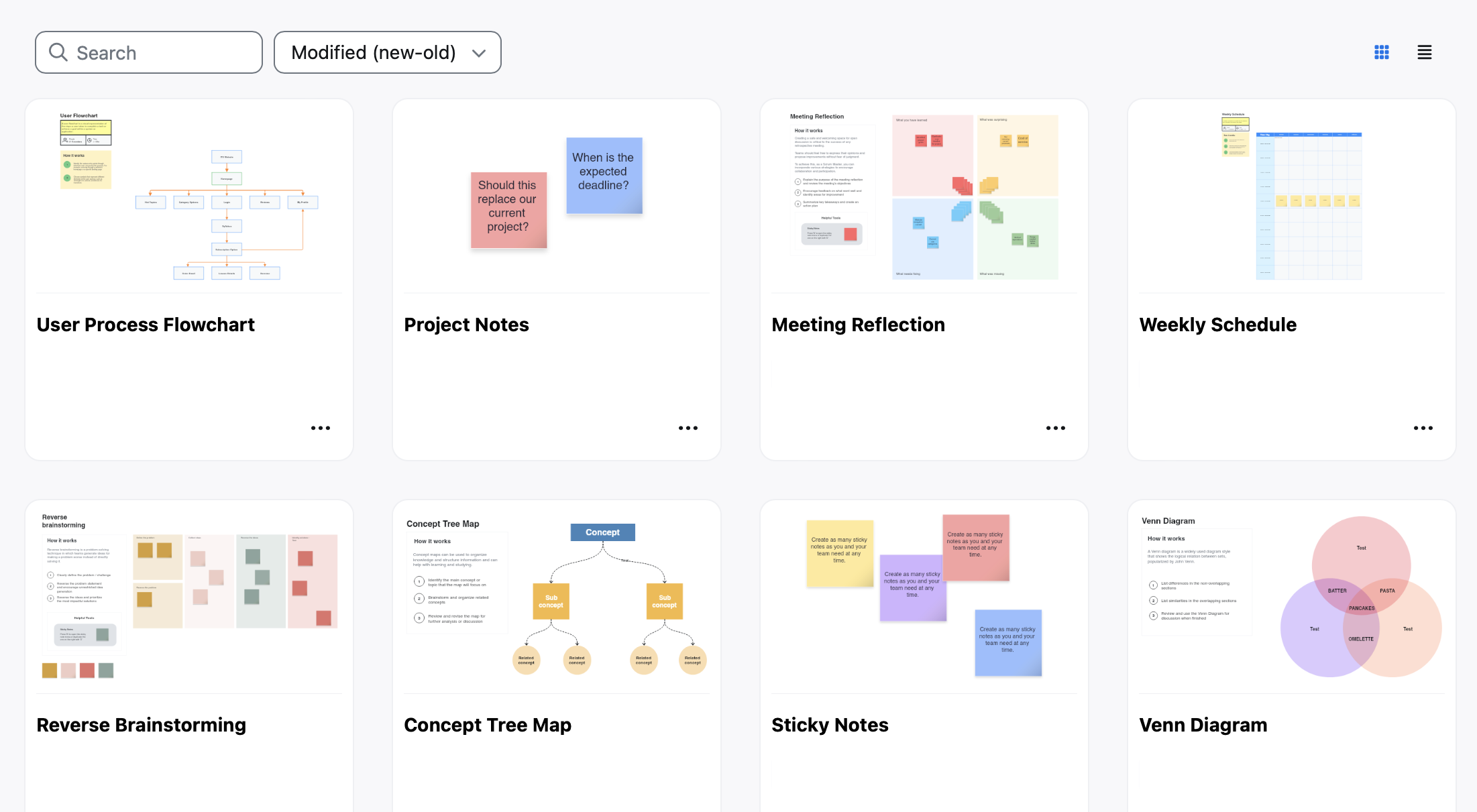
Collaborate Creatively with Zoom Whiteboards
Collaborate with your team during and outside your meetings with advanced whiteboarding tools that allow you to expand and clarify your ideas creatively.

Dynamic Meeting View
Bring active speakers to the forefront with a multi-speaker view that automatically highlights and enlarges their video tiles while keeping other participants visible in a smaller gallery.

Focus Your Screen Share
Maintain your privacy while having multiple open tabs and documents by selecting to share only a specific portion of your screen and simply dragging new content into this area as needed.
Zoom AI Companion
Now available to all faculty, staff, and students with a WSU Zoom account, Zoom AI Companion offers new Generative AI tools that can help support tasks such as creating meeting summaries, analyzing meeting recordings, building event invitations, and more.
With AI Companion, you can find new ways to increase productivity, improve collaboration, and facilitate creativity directly through the videoconferencing application.
Get Started with Zoom AI Companion
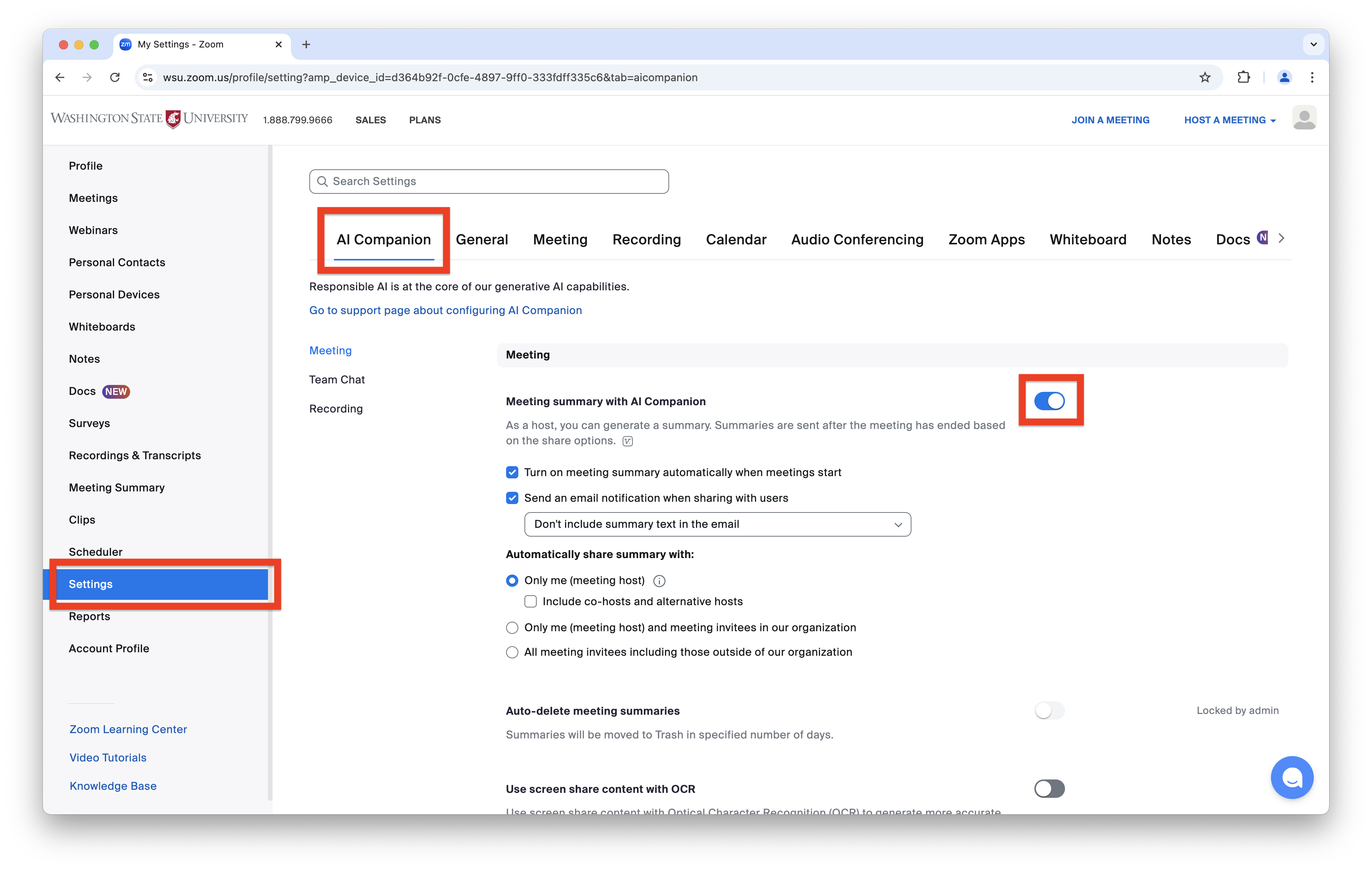
All Zoom AI Companion features are disabled by default and can be enabled at any time via the WSU Zoom web portal.
- Sign in to wsu.zoom.us with your WSU credentials.
- Select Settings on the left navigation menu.
- Select the AI Companion tab.
- Select the toggle button next to the AI Companion feature you want to enable.
Supported AI Companion Features
The following Zoom AI features are available for activation. In each section below, you will also find Zoom Support instructions for initiating each feature once manually enabled.
Meeting Summary
Meeting hosts can initiate an AI-generated summary of their meeting.
AI Companion Questions
Meeting participants can ask questions about the content of the meeting, such as “Catch me up”, “Was my name mentioned?”, and “What are the action items?”.
Smart Recording
Meeting hosts can organize their cloud recordings into smart chapters, capture highlights, identify action items with next steps, and access meeting coaching analytics.
Thread Summary
Condense Team Chat discussions and summarize messages into a single thread.
Chat Compose
Write Team Chat messages using context from meeting conversations and discussions while maintaining the ability to edit messages by adding tone, inputting prompts, or changing the message length.
Quick Schedule
Detect situations in Team Chat messages where a meeting can be created, and schedule meetings directly within Zoom.
Smart Compose
Generate event descriptions, session descriptions, speaker bios, lobby announcements, and more using context from the Zoom Event description or inputting a specific prompt.
Chat Compose
Write lobby chat messages using context from event conversations, while maintaining the ability to edit messages by adding tone, inputting prompts, or changing the message length.
Email Compose
Generate an email, subject lines, titles, and calls to action using context from the Zoom Event description or inputting a specific prompt.
Content Generation and Revision
Access templates tailored to various writing needs, receive insights and suggestions to help generate new ideas and incorporate unique perspectives, summarize document content, and highlight key points.
Sentence Completion
Receive predictive content suggestions to speed up the writing process.
Please Note: These features are only available to WSU Zoom users with Zoom Phone licenses.
Call Summary
WSU Zoom Phone users can initiate an AI-generated call summary that is automatically accessible through the Zoom call history logs and can be edited and emailed via the WSU Zoom web portal.
Voicemail Tasks
WSU Zoom Phone users can access a summarized list of tasks from their voicemail transcription to identify important tasks promptly.
Voicemail Prioritization
WSU Zoom Phone users can define a topic or intent that the system will use to organize their incoming voicemails in order of priority.
SMS Threads Summary
WSU Zoom Phone users of call queues and auto-receptionists with Power Pack licenses can generate a summary for their SMS thread to understand the conversation and generate their response quickly.
At this time, the AI Companion features for Zoom Mail and Calendar and Zoom Whiteboard are unavailable to WSU users.
Personal and Regulated Data Use
It is important to consider how AI Companion handles personal and confidential data to ensure responsible use of this new tool.
WSU users leveraging Zoom for regulated data workflows, meetings, or communication must consult with their local IT support team, privacy officer, or WSU’s Zoom Services team to identify, discuss, and mitigate potential data risks with Zoom AI Companion and ensure compliance with university and federal data protection policies.
Data from users’ interactions with the AI Companion features may be accessed, processed, and used by Zoom to provide and maintain the services, troubleshoot issues, and provide support.
However, Zoom does not use audio, video, chat, screen sharing, attachments, or other communications-like customer content to train Zoom’s or its third-party artificial intelligence models. Zoom only compiles data based on the resulting content from the AI Companion tools, not the content used to generate AI Companion summaries, next steps, and other similar details.
View a table of all data Zoom uses to power AI Companion features.
Zoom Cloud Recording for WSU Students
Starting January 2025, WSU is launching a new pilot program providing all enrolled students access to Zoom cloud recording with the ability to store recorded meeting content directly in their university Zoom account for up to 30 days.
Zoom cloud recording offers students the ability to stream meeting content through a web browser or the Zoom mobile app, while capturing video, audio, chat text, automatic transcription, and the video layout for comprehensive recordings.
With recordings stored in the cloud, students can free up device space by avoiding the need to manage large video files on their computers and easily collaborate within or outside the classroom with shareable, cloud-based links for recorded meeting content.
WSU students will also retain access to Zoom computer recording for saving content locally to their computer, providing flexibility for diverse academic needs.
Students are encouraged to explore more information on Zoom cloud recordings and familiarize themselves with the new process ahead of the January availability.
Zoom Phone Arriving to WSU Spokane, Vancouver, Everett
In an effort to advance communication capabilities for remote, hybrid, and on-campus teams at the university, Information Technology Services (ITS) is preparing to introduce Zoom Phone for WSU Spokane, Vancouver, and Everett.
With adoption scheduled for Spring 2025, transitioning to Zoom Phone from the current Cisco phone system offers WSU Spokane, Vancouver, and Everett access to a modern, user-friendly voice service that allows departments to make, receive, and manage calls on any device equipped with the Zoom app, including desktops, laptops, smartphones, and tablets.
The Zoom Phone platform retains essential functions such as call transfers, forwarding, conferencing, and voicemail while introducing new features like call delegation, blocking, routing, business hour settings, and text messaging via a WSU phone number.
As technical and administrative teams across the three campuses collaborate to determine final transition details, ITS and WSU’s Zoom Services team are committed to ensuring this change is as seamless as possible for our WSU Spokane, Vancouver, and Everett communities.
Zoom Docs
Zoom Docs allows you to create documents, build wikis, and design workflows through a robust yet simple user interface that offers the versatility and functionality of familiar document platforms, all while integrating seamlessly with your Zoom meetings.
Get Started with Zoom Docs
Create and access your documents from the Zoom Docs web portal, the Zoom desktop app, or the Zoom mobile app.
With Zoom Docs, there are multiple ways to start creating documents.
- Create a blank document for complete customization.
- Generate a document tied directly to a meeting by accessing Zooms Docs’ My Meetings tab.
- Create a document within an active meeting to capture ideas in real-time.
- Use a Zoom Docs template to guide your content.
- Import an existing file to build upon previous work.
Enhance Your Zoom Docs
After successfully creating a new document, you can apply formatting to your text, expand your document with new pages, customize your page layouts, access advanced editing tools, and more.
Manage Your Zoom Docs
When you access Zoom Docs, you can add documents to your favorites list, access your meeting templates, view document comments, search Zoom Docs using keywords, title, or author, and more.
Docs Features
Zoom Docs provides numerous tools for creating, organizing, and distributing documents.
Integrated directly into the platform, Zoom AI Companion allows you to create new content or refine existing documents within seconds.
- Access real-time AI assistance.
- Generate content based on pre-existing documents, meeting transcripts, chat discussions, or using custom or pre-set commands.
- Synthesize information from your meetings or available doc content.
- Summarize or query doc content to quickly get caught up.
- Change the tone or style of your writing.
- Catch and correct spelling and grammatical errors.
- Convert documents into different formats.
- Create doc brainstorms in seconds.
- Create plans and outlines for your writing.
- Translate content into 9 languages.
- Start, join, or schedule a meeting directly from a doc.
- Start a meeting from a doc and immediately share permission to edit that doc with all attendees.
- Within active meetings, team members can co-edit, comment, and add content to docs in real-time, without leaving the meeting.
- Pull content from meetings into meaningful documents and agendas.
- Convert AI companion meeting summaries into docs to reduce time spent on notetaking and copying notes into shared documents.
- Invite users to contribute and collaborate with docs you have created.
- Sharing docs allow users to work together, comment on any part of the document, and tag specific people in the comments.
- Within active meetings, provide temporary access to docs to guests for just the duration of a meeting.
- @Mention team members to loop them into timely discussions.
- Add comments and threads to docs to maintain context
- Up to 100 users can edit and contribute to a Zoom Doc at the same time.
- Enable spotlight mode for your docs.
- Create information hubs by organizing team documents in wikis.
- Collection of docs associated with a project.
- Group pages into hierarchies and organize docs with folders for a more complete knowledge source.
- Create a main page that serves as your table of contents and create linkable subpages to separate topics.
- Embed various pages in a visual tree to instantly see how information is connected.
- Easily searchable and accessible.
- Use pre-populated templates.
- Wide range of templates for project tracking, meeting agendas, checklists, and more.
- Create templates from saved docs for convenient reuse.
- Select Doc templates available for Q&As, one-on-ones and other types of meeting.
- Format information quickly.
- Insert text, images, tables, charts, and more for simplified information management.
- Add checklists, videos, and callouts to docs for improved engagement.
- Organize information into customizable layouts and workflows.
- Convert data into tables.
- Create columns, filters, and groups for improved data organization.
- Create tables, trackers, and checklists.
- Set due dates or status tracking for improved progress monitoring.
- Add information from Zoom meetings and third-party applications to docs.
- Embed content from Zoom Whiteboard, Google Drive, YouTube, social media, and more.
- View information in tables, galleries, boards, calendars, and more.
Zoom Clips
With asynchronous video messaging capabilities, Zoom Clips provides WSU users with a new tool to record, edit, and share high-quality, short-form video messages. Whether recording video, screen content, or both, Zoom Clips can help you capture brief team updates, quick training sessions, and more to improve communication and reduce live meeting time.
Get Started with Zoom Clips
You can create five new clips with a maximum duration of two minutes per clip via the WSU Zoom web portal or the Zoom desktop app.
Web Portal
- Sign in to wsu.zoom.us with your WSU credentials.
- On the left navigation menu, select Clips.
- Select New Clip. You will be redirected to a Create Clip window in your Zoom app.
- Select Start Recording.
- Select Finish to end your recording.
Desktop App
- Open the Zoom desktop app on your Windows or Mac device.
- On the top menu bar, select the Clips tab.
- Note: You may need to select the More tab to access the Clips option.
- Select New Clip. A Create Clip window will display.
- Select Start Recording.
- Select Finish to end your recording.
Before starting a recording, you can adjust various Clips settings for recording in your Zoom app to change the screen share, video source, location of the speaker video in relation to the content presented, audio source, title, wallpaper, resolution of the final recording, and more.
You can also update your general Zoom Clips settings to allow viewers to download shared clips, require a passcode to access shared clips, auto-delete clips after a specified time, and activate email notifications for views, comments, and replies.
Clips Features
Zoom Clips provides various features that support different workflows.
- Choose to capture your screen and your video, just your screen, or just your video.
- Control advanced settings like Virtual Backgrounds and noise suppression.
- While recording, you can:
- Mute or unmute your audio
- Start or stop your camera
- Pause and resume your recording
- Cancel your recording
- Cut and trim unwanted sections of your clip as needed.
- Change your clip titles and descriptions.
- Add tags to your clips for improved search.
- Add thumbnail images to your clips.
- View, manage, and update all clips in the Zoom web portal or Zoom desktop app.
- Download your clips.
- Delete unwanted clips.
- Track how many people have watched your shared clips.
- Share your clips with other individuals.
- Search your clips by name or use filters to locate them.
- Search your clips based on tags.
- Use keywords or phrases to locate and navigate directly to relevant moments within a clip’s transcript.
- Set permissions to control who can view your clip.
- Generate shareable links for your clips.
- Share clips via directly from Zoom.
- Allow viewers to add comments on clips.
- Viewers can post comments on clips you shared with them.
- Viewers must login to a Zoom account to post comments.
- Viewers can add emoji reactions to your clips.
- Viewers can link emoji reactions and comments to a specific timestamp.
- Respond to comments directly on your clips.
Shared Spaces in Zoom Team Chat
Available within Zoom’s Team Chat feature, shared spaces allow WSU users to create focused and productive collaboration environments for projects of all sizes and scales. These spaces bring together channels where teams can communicate and share ideas, making it easy to stay organized and find what you need in one central location.
Get Started with Shared Spaces
Zoom currently offers one type of shared space: a private shared space. These spaces are exclusively visible to space members and are not discoverable for joining. Shared spaces are accessible from the Zoom app for Windows, macOS, Android, and iOS.
Please Note: At this time, WSU Zoom users can only create new shared spaces via the Zoom desktop app.
- Open the Zoom desktop app on your Windows or Mac device.
- On the top menu bar, select the Team Chat tab.
- Note: You may need to select the More tab to access the Team Chat option.
- On the left sidebar, select the + option.
- Select Shared Space.
- Set up your new space with the following details:
- Shared Space Name: Create a name for the new shared space.
- Shared Space Type: Private by default.
- Add Members: Search for users to add to your space upon creation.
- Advanced Permissions: Select who can add new members, who can create channels, or who can add external users for your space.
- Select Create Shared Space.
Create new channels within your shared spaces to improve topic discoverability and streamline access to project or team discussions.
Channel Types
Each space supports the following channel types: General Channel, Public to Members Channel, and Private Channel.
View Channels
For easy navigation between multiple topics, Zoom allows you to view all channels within a shared space you can access.
Move Channels
You can also relocate existing channels to different shared spaces to improve the structure of your content.
Shared spaces offer several roles with specific permissions that allow users to participate and make changes uniquely within a shared space.
While a comprehensive tool for collaboration, shared spaces have certain restrictions that are important to consider. Understanding these limitations will ensure that this tool aligns with your team goals and that you maximize the effectiveness of shared spaces for streamlined communication and project management.
Friendly Reminders
Quarterly Zoom Version Updates
Mandatory Zoom updates are scheduled every quarter, with the next version update expected in November 2024.
Meeting Security Requirements
WSU requires all Zoom meetings to be secured with a passcode, waiting room, or required authentication to join the meeting.
Zoom Cloud Recording Retention
Meeting recordings are retained in the Zoom web portal for 365 days for WSU staff and 425 days for Video Conference (VC) instructors.
Meeting ID and Link Expiration
Expiration rules for different Zoom meeting types may cause an invalid meeting ID error to appear and may prevent you from starting your meetings on time.
Free Webinar and Event Licensing
WSU offers Zoom Webinar and Zoom Events licenses at no cost to faculty and staff to help you coordinate and manage sessions of all sizes and occurrences.
Free Digital Signage Tools
Create and share custom, visual multimedia displays in Zoom Rooms and other on-campus spaces via display devices using Zoom’s versatile digital signage capabilities.
Questions?
Explore the WSU Knowledge Base for additional instructional Zoom guides covering WSU Zoom account access, meeting controls and settings, privacy and security options, and much more.
Please direct questions to WSU’s Zoom Services team via email at zoom.support@wsu.edu.
Meet the Team

Travis Williams
Manager, VC Infrastructure and Support
Given my role at WSU, I cultivate a team with expertise and leadership in videoconference delivery and management. My team represents WSU’s distance education and collaborative communication interests. We strive to conduct outstanding support for the WSU community, providing tools and transparent reporting to technical teams across the institution. My goal is for stakeholders who engage my team to have a positive outcome, and also to feel confident the service they rely upon is in the best hands possible.

Brandon Henry
Video Conferencing Specialist
As a video Conferencing specialist, my role is to provide technical support and training to Washington State University Zoom users. I enjoy serving WSU customers because it allows me to help create meaningful connections and facilitate seamless virtual interactions, ultimately improving the user experience and achieving the goal of enhancing collaboration and communication within the WSU community.

Casey O’Leary
Video Conferencing Specialist
As a graduate of WSU myself, I have always enjoyed my experience within the WSU community. Previously, this was as a student and sports fan, but now I’m able to contribute in a professional manner by providing technical support, training, and administration of WSU’s video conferencing service. My goal is to provide the highest level of service within my capacity in ITS, so that we can continue to grow and progress the overall WSU community.