Beginning this summer, computers in General University Classrooms (GUCs) on the WSU Pullman campus will require users to sign in with their WSU credentials.
Timeline
Information Technology Services (ITS) will begin updating GUC computers on May 18. Updates will continue throughout the summer, with completion expected by early August.
Because updates will occur in phases, some GUC computers may require sign‑in earlier than others.
What’s Changing
On updated GUC computers, you will see a sign‑in screen when you approach the workstation. To continue, enter the following:
- Your full WSU email address
- Your current WSU password
The first time you sign in to an updated GUC computer, your user profile will be created. This process may take a few minutes to complete. This is expected and will only occur once, so please allow extra time if signing in shortly before a class.
Anyone with an active WSU account, including faculty, staff, and teaching assistants, can sign in. No additional permissions or approvals are required.
Requiring sign‑in ensures WSU protects university systems and data by ensuring only authorized users access classroom computers.
Visual Step-By-Step
Below is a visual step-by-step description of the new sign‑in process for GUC computers:
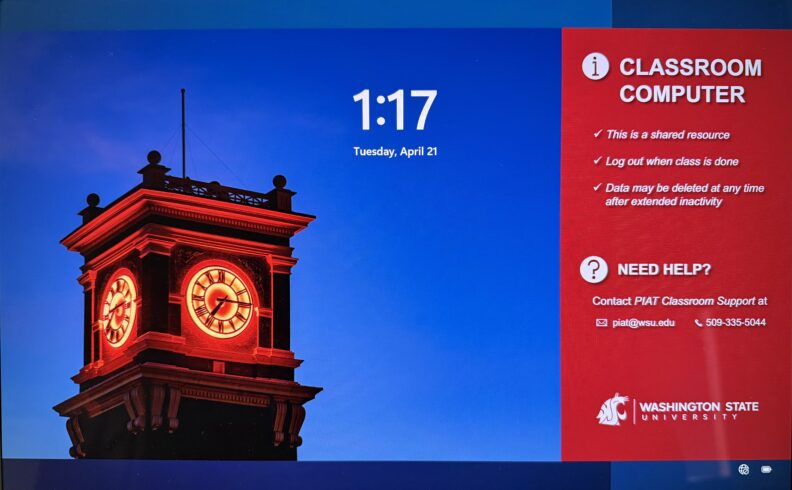
1. Wake Up the Computer
When you touch the keyboard or move the mouse, the computer will show a WSU background with a Classroom Computer panel. Click the mouse or press a key to continue.
2. Accept the Use Notice
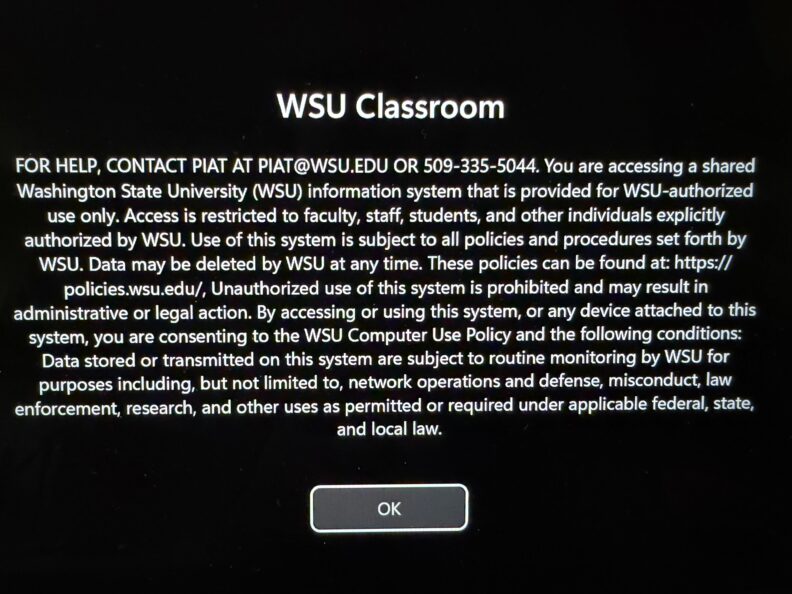
Next, a WSU Classroom policy screen will appear. Select the “OK” button to continue.
3. Choose How You Want to Sign In
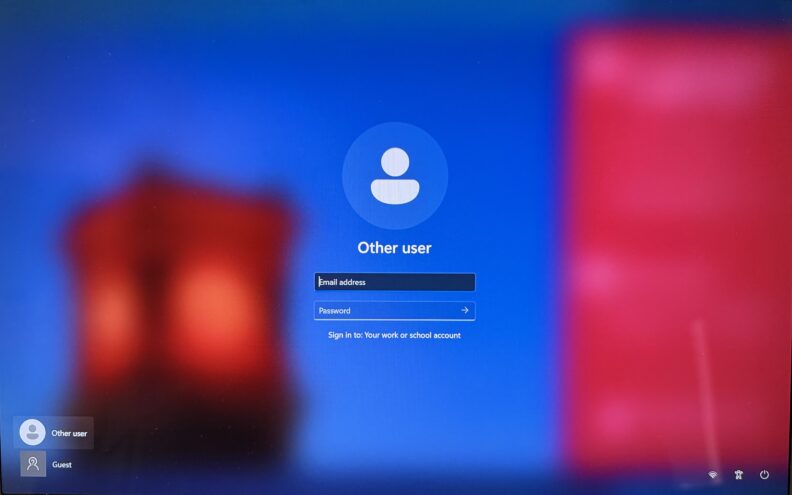
A screen with two user profile options in the lower‑left corner will appear:
- Other User (recommended for all WSU users)
- Guest (limited access)
Option A (Recommended): Sign in with your WSU account
- Select the Other User profile option.
- In the Email Address box, enter your WSU email address.
- In the Password box, enter your WSU password.
- Press Enter or select the arrow to sign in.
This option provides full access to computer tools and applications.
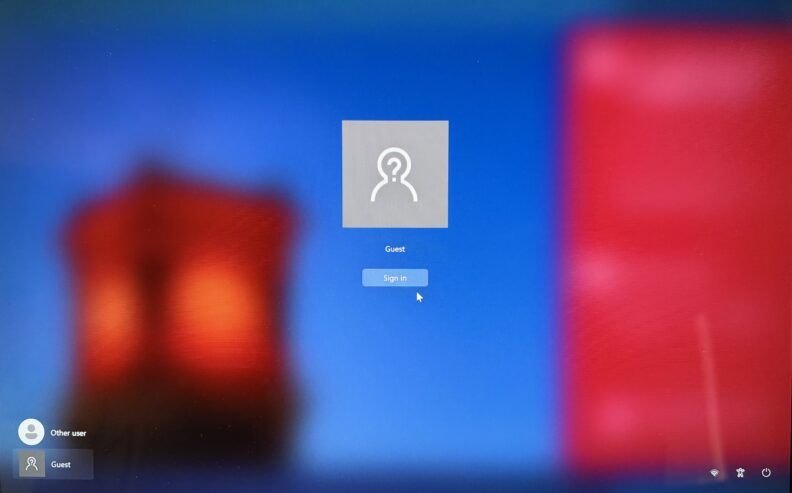
Option B: Use Guest access (limited access)
- Select the Guest profile option.
- Select the Sign In button.
No sign-in is required, but computer permissions and access are limited.
What This Means for You
- You do not need to prepare in advance, request access, or change how you teach.
- This change does not affect classroom scheduling or access to course materials.
- Sign‑in will use the same password as WSU email, myWSU, and other services.
- Sign-in will not require multi-factor authentication.
Support
Thank you for your continued teaching and flexibility as we implement this update.
For classroom technology support in GUCs, please contact Pullman Integrated Academic Technologies at piat@wsu.edu or 509-335-5044.