Monitor Your Microsoft Storage Use

Visit the WSU Knowledge Base for additional support articles regarding Microsoft Data Storage.

Create a streamlined, uninterrupted Microsoft experience during your time at WSU by regularly checking your Microsoft 365 storage usage to help you stay within your provided allocations.

In This Resource

Outlook Storage

The following instructions can assist you with reviewing your WSU mailbox size and email storage use based on the Outlook version you access.

Outlook for Windows

1. Open the Outlook desktop application on your Windows device.

2. In the top ribbon, select the File tab.

3. Select the Tools option.

4. Select the Mailbox Cleanup option.

5. Select the View Mailbox Size option. This will display how much of your current email storage quota you have utilized for your WSU account, with a storage use breakdown for various folders.

    Outlook for Mac (New Version)

    1. Open the Outlook desktop application on your Mac device.

    2. In the top menu bar of your Mac, select the Tools option.

    Screenshot of the Outlook desktop application on macOS. The top menu bar shows options: Outlook, File, Edit, View, Message, Format, Profiles, Tools, Window, and Help. A large red arrow points to the ‘Tools’ menu item.

    3. Select the Manage Storage option.
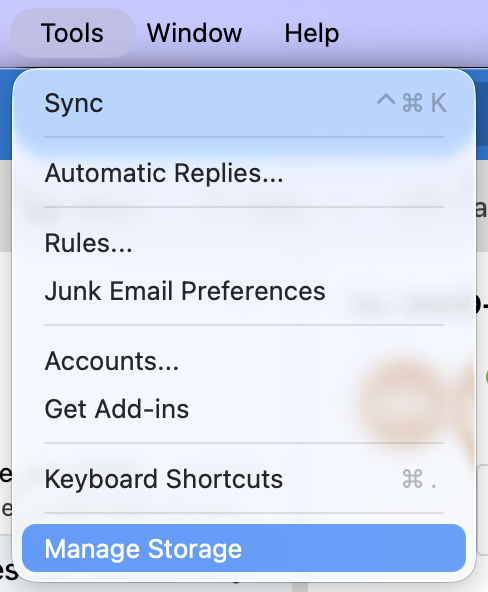
    Dropdown menu from the Tools tab in Outlook on macOS. Menu options listed are: Sync, Automatic Replies, Rules, Junk Email Preferences, Accounts, Get Add-ins, Keyboard Shortcuts, and Manage Storage. The Manage Storage option is highlighted in blue.

    4. This will display how much of your current email storage quota you have utilized for your WSU account, with a storage use breakdown for various folders.
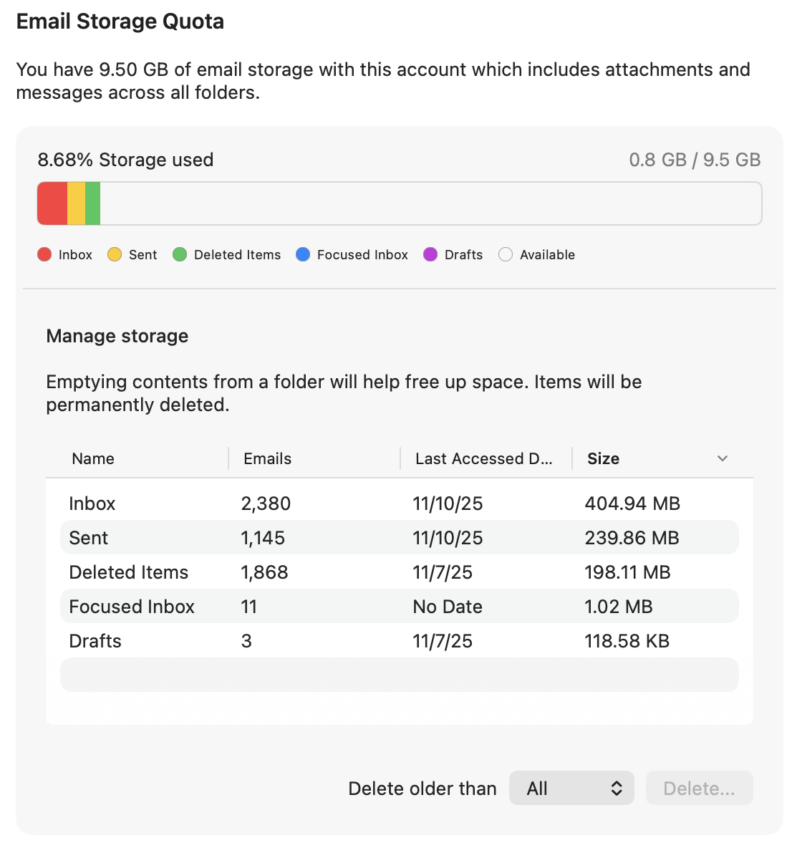
    Outlook Email Storage Quota showing 8.68% used (0.8 GB of 9.5 GB) with folder sizes

    Outlook on the Web

    1. Sign in to Outlook on the Web with your WSU credentials.

    2. In the top right of the page, select the Settings (Gear) icon.

    Screenshot of Outlook web interface. A large red arrow points to the gear icon for Settings in the upper right corner

    3. Select the Account tab.

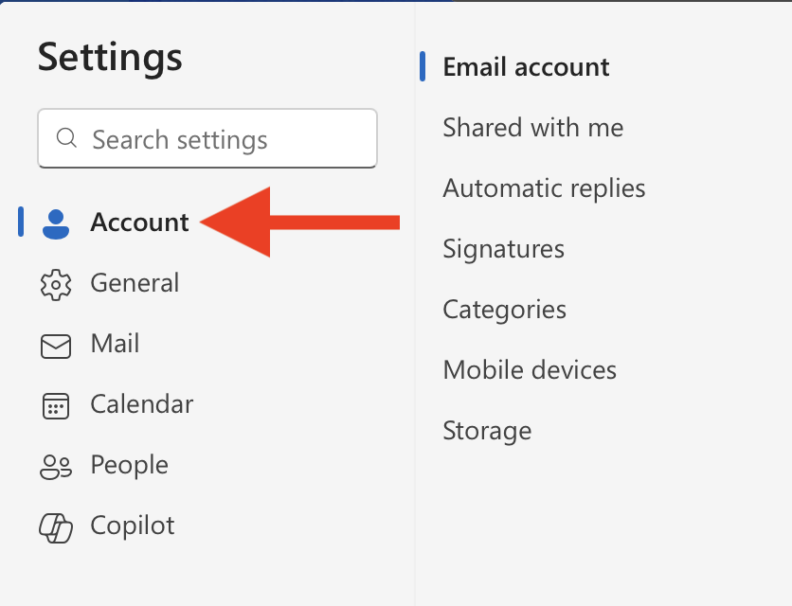
    Outlook web settings panel showing a vertical menu on the left with icons and labels: Account, General, Mail, Calendar, People, and Copilot. A red arrow points to the Account option. On the right, the Email account section lists: Shared with me, Automatic replies, Signatures, Categories, Mobile devices, and Storage

    4. Select the Storage tab.

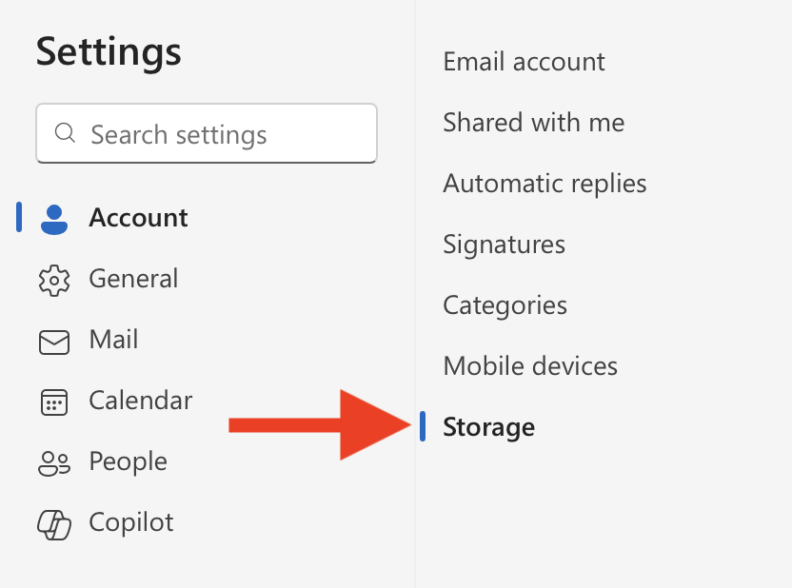
    Outlook web settings panel showing a vertical menu on the left with icons and labels: Account, General, Mail, Calendar, People, and Copilot. A red arrow points to the Storage option in the Email account section on the right, which also lists Shared with me, Automatic replies, Signatures, Categories, and Mobile devices

    5. This will display how much of your current email storage quota you have utilized for your WSU account, with a storage use breakdown for various folders.
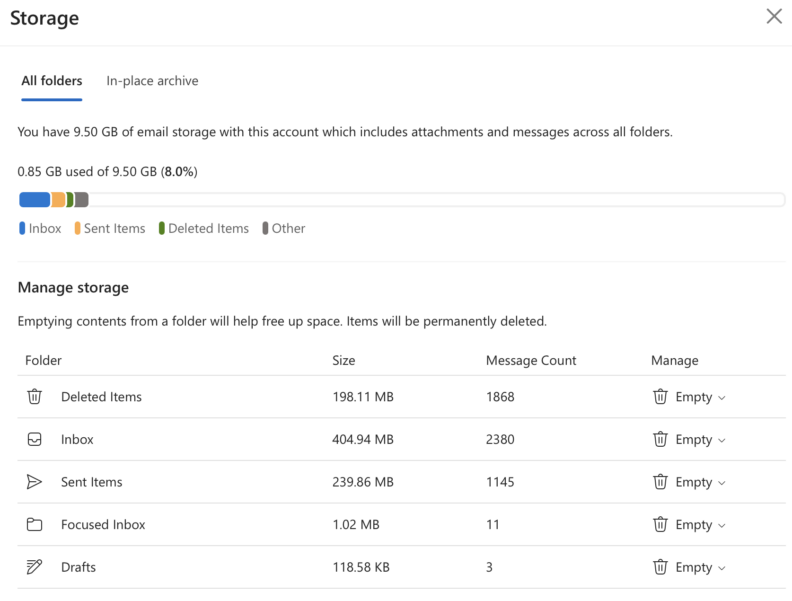
    Outlook web Storage settings page showing email storage details. Text indicates 9.50 GB total storage with 0.85 GB used (8%). A horizontal bar displays color-coded usage for Inbox, Sent Items, Deleted Items, and Other. Below, a Manage storage section lists folders with size, message count, and an Empty button

    OneDrive Storage

    The following instructions can assist you with reviewing your WSU OneDrive size and storage use. You can also review the following Microsoft article for additional support: Manage Your OneDrive Storage

    (Recommended) OneDrive on the Web

    Please utilize this process to review storage metrics provided by OneDrive. This process provides the most accurate summary of your storage use for your WSU OneDrive as it captures all cloud-synced files.

    1. Sign in to OneDrive Online with your WSU credentials.

    2. Navigate to the left navigation menu.
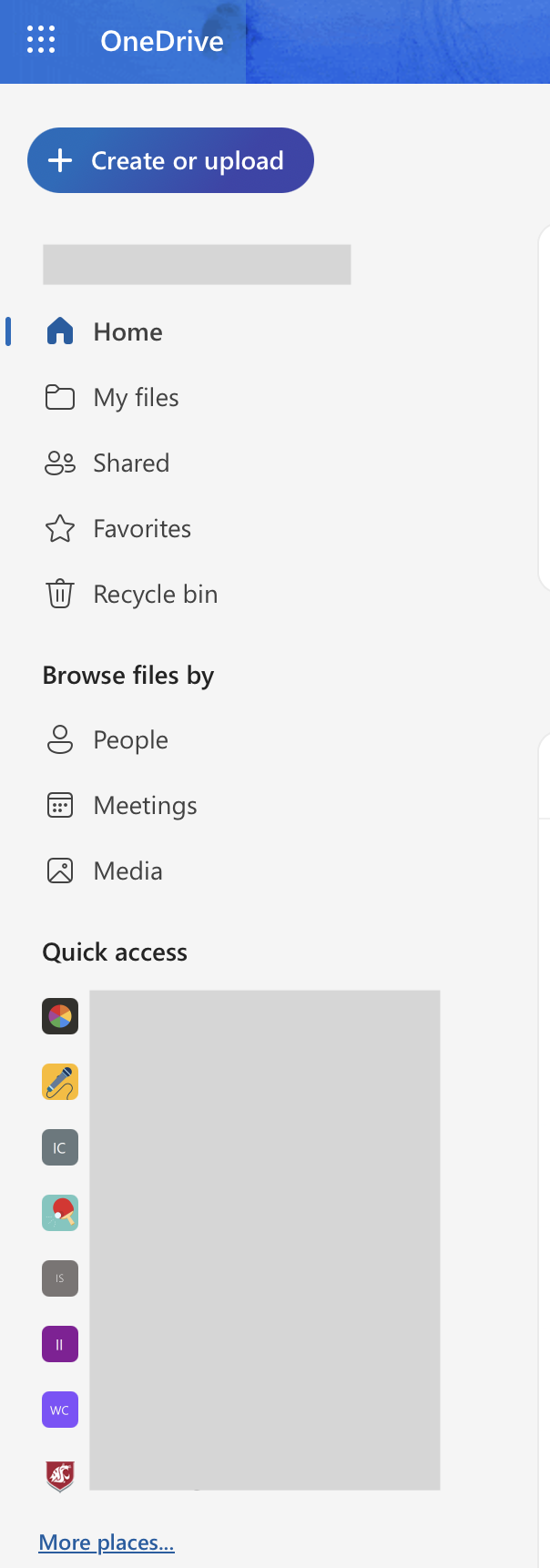
    OneDrive web interface sidebar showing navigation options. At the top is a blue button labeled ‘Create or upload.’ Below are menu items: Home, My files, Shared, Favorites, and Recycle bin. Under ‘Browse files by,’ options include People, Meetings, and Media. The ‘Quick access’ section displays recent or pinned files, followed by a link labeled ‘More places…’

    3. In the left navigation menu, scroll to the bottom and find the Storage section.

    4. Select the hyperlinked number for your OneDrive storage usage value.
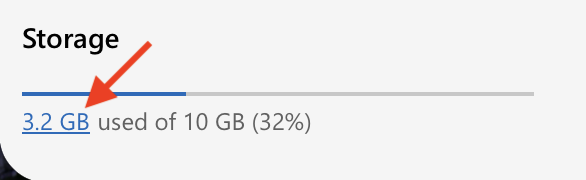
    Storage section showing a horizontal progress bar with a red arrow pointing to the blue portion. Text below reads ‘3.2 GB used of 10 GB (32%)’, with ‘3.2 GB’ displayed as a clickable link

    5. This will display a list of your largest files in OneDrive.
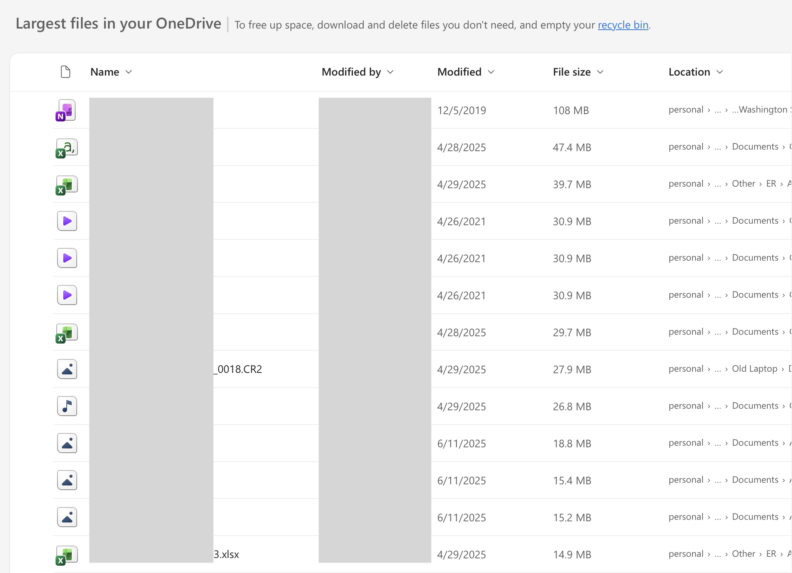
    OneDrive web page showing a list of the largest files in the user’s storage. The table includes columns for Name, Modified by, Modified date, File size, and Location. File names and owners are blurred for privacy

    OneDrive on Windows

    1. In the Windows notification section on your Windows device, select the OneDrive (Blue Cloud) icon.

    2. Select the Settings option.

    3. Select the Manage Storage option.

    4. This will display a list of your largest files in OneDrive.

    Teams and SharePoint Storage

    The following instructions can assist you with reviewing the sizes of Teams and SharePoint sites you own. Storage information is only available to users listed as owners of Teams and SharePoint sites.

    1. Sign in to Microsoft 365 with your WSU credentials.

    2. In the Apps section, select the SharePoint option.
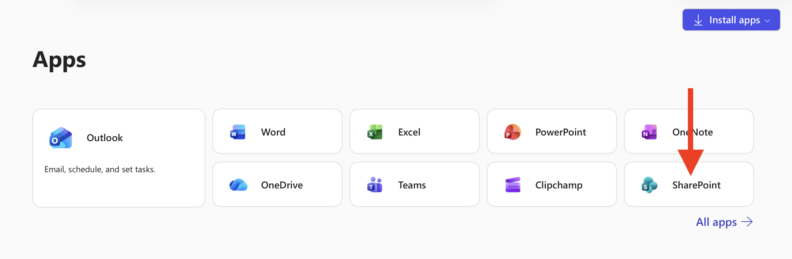
    Microsoft 365 Apps page showing a grid of app tiles: Outlook, Word, Excel, PowerPoint, OneNote, OneDrive, Teams, Clipchamp, and SharePoint. Each tile includes an app icon and name. A red arrow points to the SharePoint tile in the bottom row. An ‘Install apps’ button is visible in the top-right corner, and an ‘All apps’ link appears below the grid

    3. Select the Team or SharePoint space you want to review.

    4. In the left navigation menu, select the Site Contents tab.
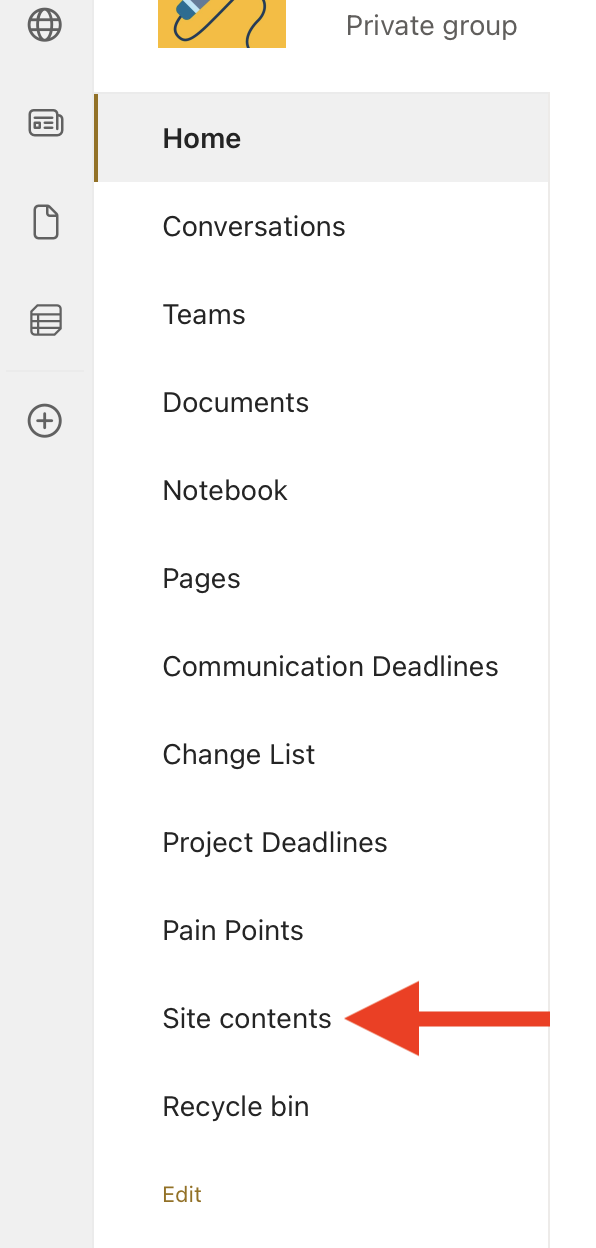
    SharePoint site navigation menu displayed vertically on the left. The menu includes options: Home, Conversations, Teams, Documents, Notebook, Pages, Communication Deadlines, Change List, Project Deadlines, Pain Points, Site contents, and Recycle bin. A red arrow points to the ‘Site contents’ option

    5. In the top right of the page, select the Site Settings option.
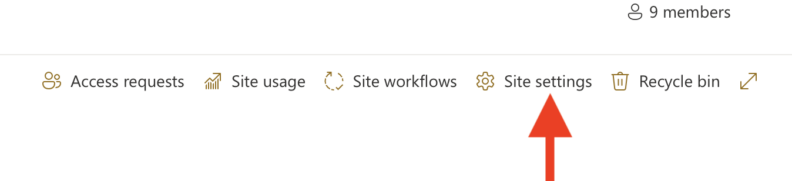
    SharePoint site options bar showing icons and labels: Access requests, Site usage, Site workflows, Site settings, and Recycle bin. A red arrow points to the Site settings option, which has a gear icon

    6. In the Site Collection Administration section, select the Storage Metrics option.
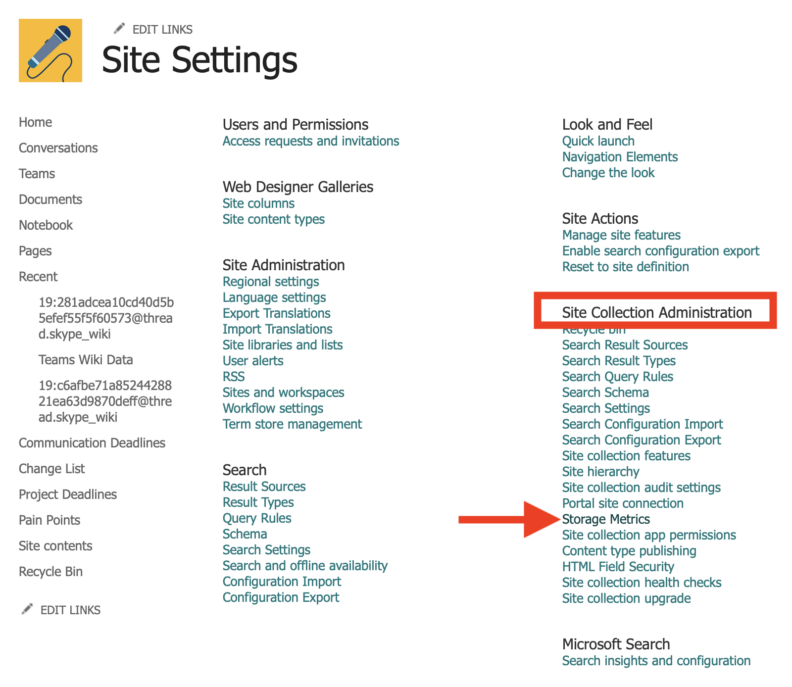
    SharePoint Site Settings page showing multiple sections with links. Sections include: Users and Permissions, Web Designer Galleries, Site Administration, Search, Look and Feel, Site Actions, and Microsoft Search. A red box highlights ‘Site Collection Administration,’ and a red arrow points to the ‘Storage Metrics’ link under that section

    7. This will display how much of your current site storage quota you have free and the total size of different areas within the Teams or SharePoint site.
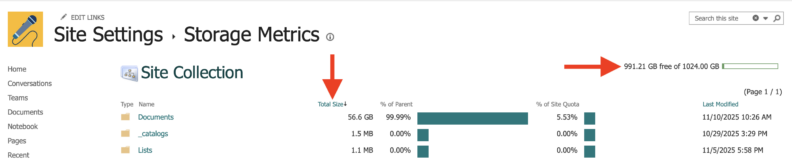
    SharePoint Site Settings page showing Storage Metrics for a site collection. A red arrow points to ‘Total Size’ above the table, and another arrow points to a storage bar indicating 991.21 GB free of 1024.00 GB